Menu Highlight
What is the Menu Highlight block?
Since v2.3.0Header group
The Menu Highlight block allows you to visually distinguish specific navigation items in the header by adding a custom color and icon. It is ideal for drawing attention to important links such as sale pages, new arrivals, or seasonal promotions.
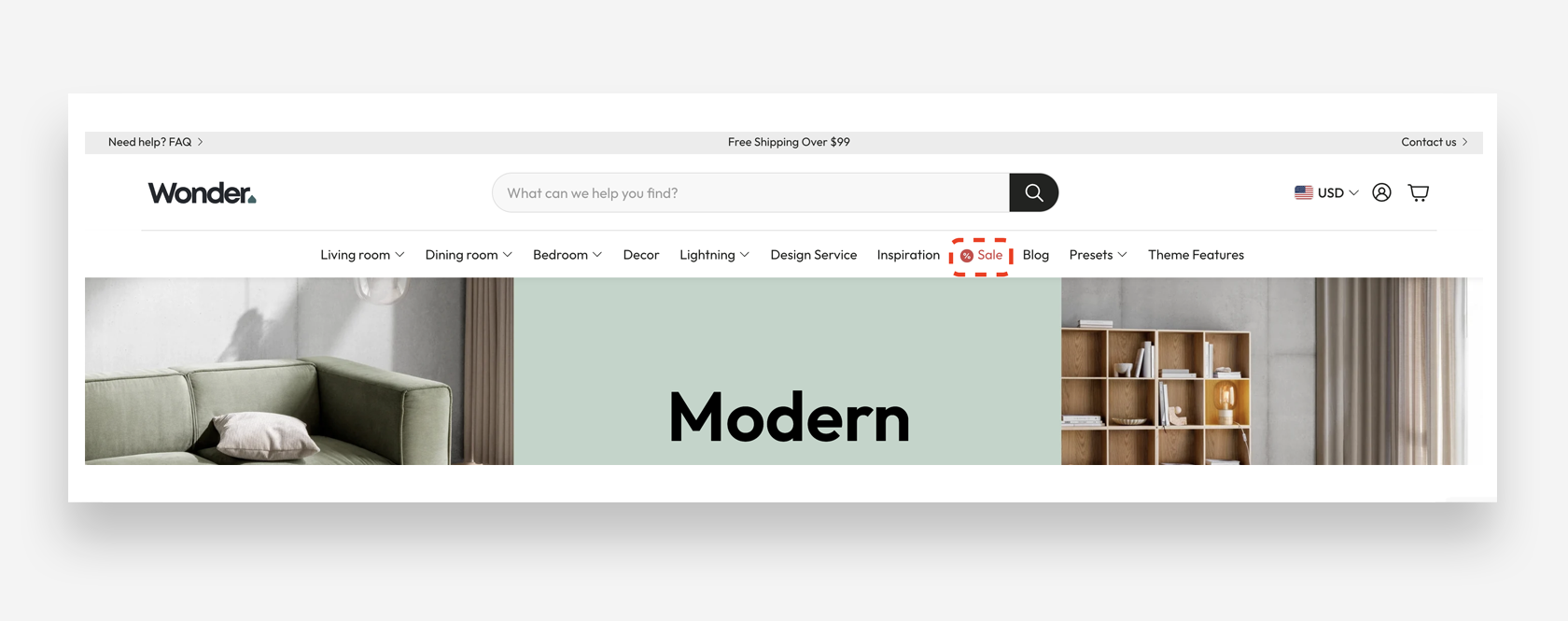
Main Settings
General
- Menu items to highlight: Enter the names of the menu items you want to highlight, separated by commas (e.g., Sale, New Arrivals). The names must match exactly the link names used in your navigation menu.
- Highlight color: Set the color used to highlight the specified menu items.
- Custom icon: Upload an optional icon displayed next to the highlighted menu items. The recommended size is 24x24px.
How to Add a Menu Highlight Block
- Open Theme Customization: From your Shopify admin dashboard, go to the Online Store and click Themes. Locate your current theme and select Edit Theme.
- Access the Header: In the Theme Customizer, navigate to the Header section in the left-hand panel.
- Add the Block: Click Add block and select Menu Highlight from the available block options.
- Set Menu Items: Enter the exact names of the navigation items you want to highlight, separated by commas.
- Customize the Appearance: Choose a highlight color and optionally upload a custom icon to display next to the highlighted items.
- Save and Review: After configuring the block, save your changes and preview your store to ensure the highlighted items appear as intended in the navigation menu.