Cart
Wonder Theme supports two cart display modes — a slide-out Drawer or a dedicated Page — configured once in Theme Settings and applied across the entire store. Cart settings are split across two groups: Cart (core options) and Cart - Addons (optional features). You can find them under Customize → Theme Settings.
The Cart settings allow you to control how the shopping cart is displayed and behaves across your store, customize the subtotal area with savings information, and configure the cart footer with payment badges.
Cart Page
A full /cart route that replaces the current page when a shopper views their cart. On screens 900 px and wider the layout switches to two columns automatically — items on the left, order summary on the right. On narrower screens everything stacks in a single column.
Desktop layout
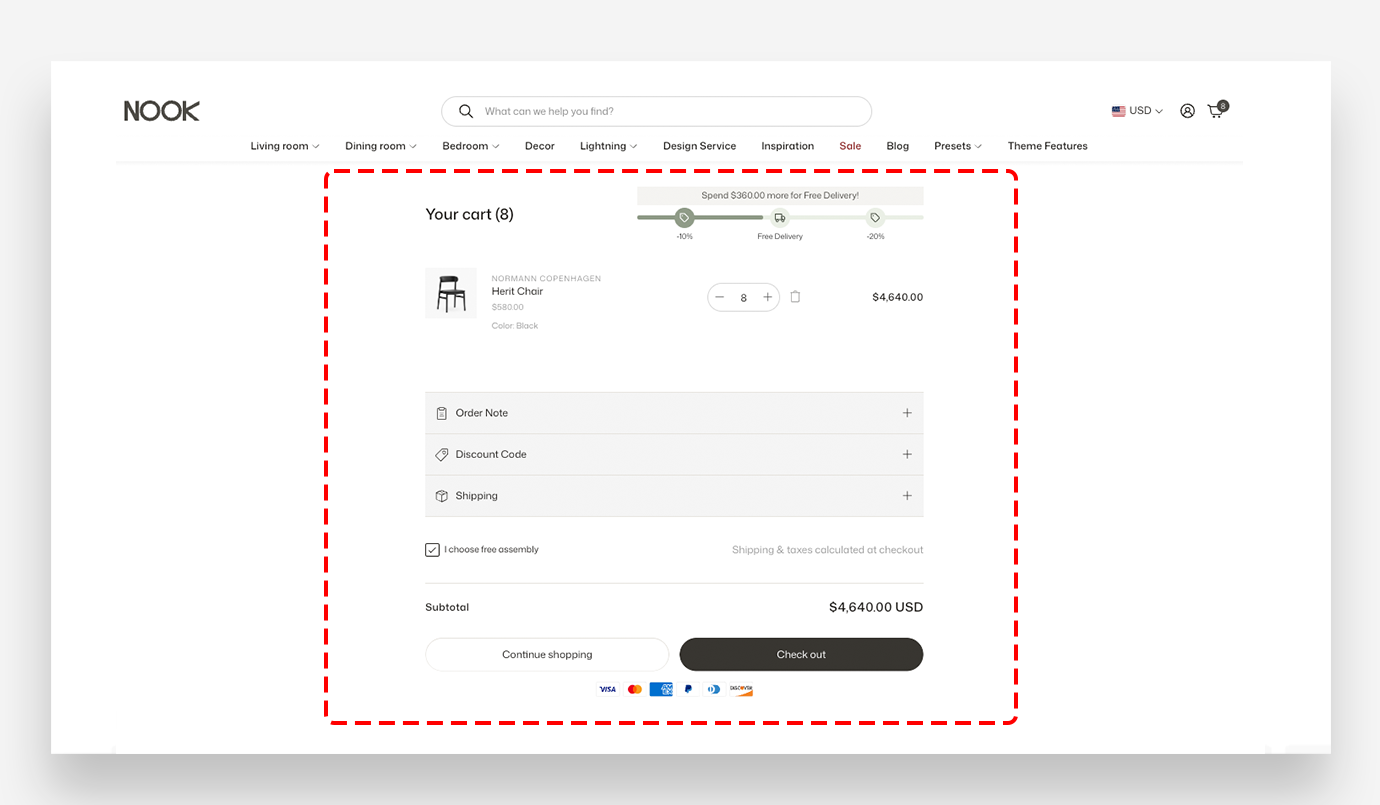
On screens 900 px and wider, the cart page switches to a two-column layout automatically — no configuration needed.
- Header — The cart title moves to the left; the free shipping bar and discount progress bar sit on the right, capped at 452 px.
- Additional features — Each feature expands inline as an accordion instead of a slide-up panel. Only one feature can be open at a time.
- Action buttons — Continue shopping (secondary) and Check out (primary) appear side-by-side at equal width.
On screens below 900 px, the layout falls back to a single vertical column.
Cart Drawer
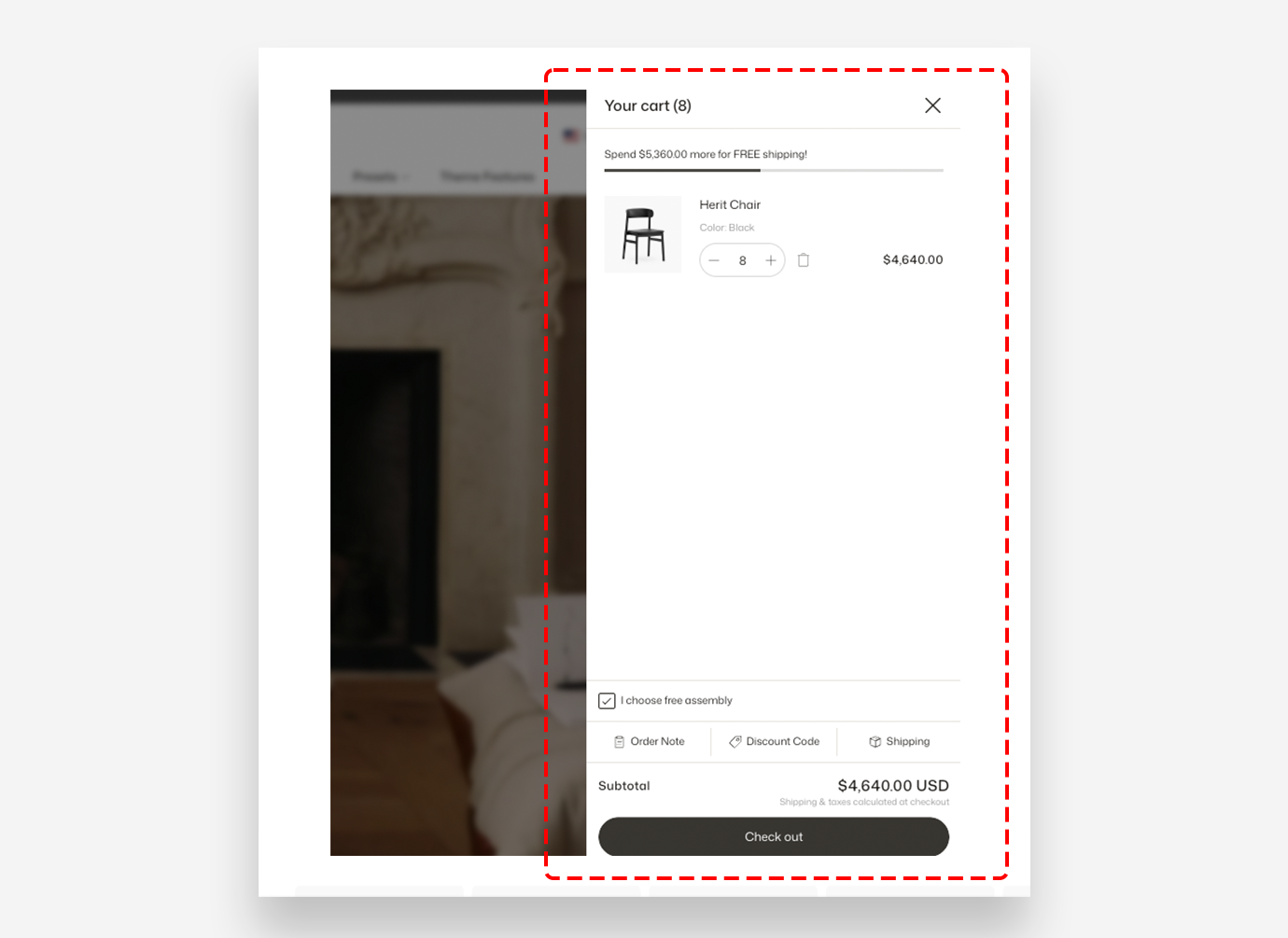
A slide-out panel that overlays the current page without navigating away. The drawer opens from the side and lets shoppers review and edit their cart without losing their place on the site.
Main settings
General
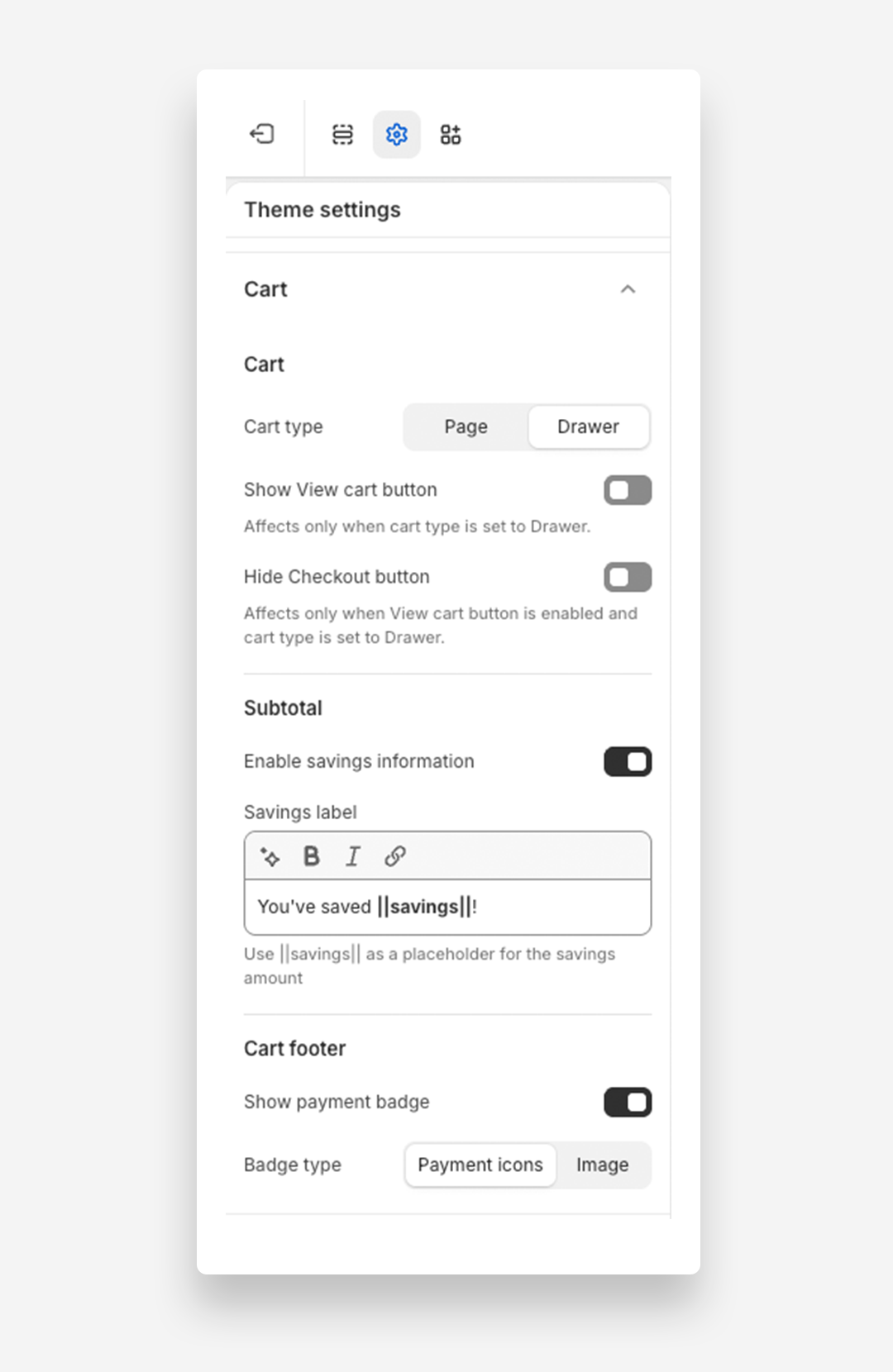
- Cart type — Choose how the cart opens: Drawer (slides out from the side without leaving the current page) or Page (a full
/cartroute). - Show View cart button — Add a "View cart" button next to the Checkout button in the drawer. Only applies when Cart type is Drawer.
- Hide Checkout button — Hide the primary Checkout button in the drawer. Only applies when Show View cart button is on and Cart type is Drawer.
Subtotal
- Enable savings information — Show a "You've saved $X" line below the subtotal when a discount is applied (sale prices, automatic discounts, or discount codes).
- Savings label — The text shown in the savings line. Use
||savings||as a placeholder for the saved amount.
Cart footer
- Show payment badge — Show payment methods or a custom badge image below the checkout button.
- Badge type — Choose Payment icons (auto-generated from your store's enabled payment methods) or Image (custom badge artwork).
- Mobile image — Upload a small image for narrow viewports. Only applies when Badge type is Image.
- Desktop image — Upload a wider image for larger screens. Only applies when Badge type is Image.