Blog Posts
What is the Blog Posts section?
Since v2.4.0
The Blog Posts section displays a grid of blog articles with filtering by tags, making it easy for visitors to browse and discover content. Each article card includes an image, tags, date, author, title, excerpt, and a read more button.
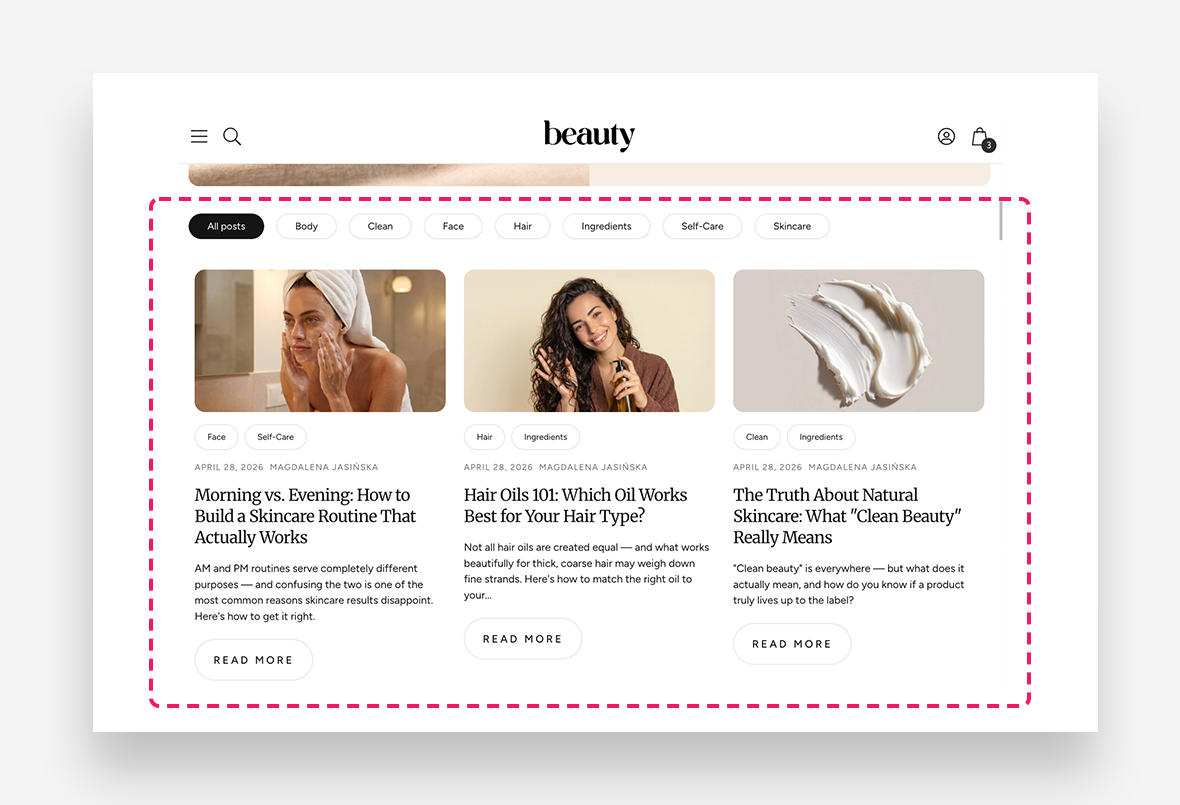
Main Settings
General
- Show blog title — Enable this toggle to display the blog name as a heading above the posts grid.
Tags Navigation
- Show tags filter — Enable this toggle to display a row of tag buttons above the posts, allowing visitors to filter articles by category.
- Tag style — Choose between Primary and Secondary visual styles for the tag filter buttons.
- Tag text style — Choose between Body and Button text styling for the tag filter labels.
- Desktop placement — Set the horizontal alignment of the tag filter row on desktop — Left or Center.
- Active background color — Set the background color of the currently selected tag button.
- Active text color — Set the text color of the currently selected tag button. The Transparent value inherits from global settings by default.
Blog Post Card
- Show featured image — Enable this toggle to display the article's featured image at the top of each card. For best results, use an image with a 2:3 aspect ratio.
- Show date — Enable this toggle to display the publication date on each article card.
- Show author — Enable this toggle to display the author's name on each article card.
- Show article tags — Enable this toggle to display tag labels on each article card.
- Number of tags — Set how many tags are shown per article card.
- Tag text style — Choose between Body and Button text styling for tags displayed on the cards.
- Image ratio — Choose how the featured image is cropped — Adapt to image preserves the original proportions.
- Column alignment — Set the horizontal alignment of content within each card — Left or Center.
- Number of columns on desktop — Choose between 2 or 3 columns for the posts grid on desktop.
- Button Style — Choose the visual style of the read more button on each card.
Large Screen Version
- Heading scale large screen — Adjust the font size of article titles on large screens.
Mobile Version
- Heading scale mobile — Adjust the font size of article titles on mobile devices.
Section Spacing
- Distance from the top — Adjust the spacing above the section.
- Distance from the bottom — Adjust the spacing below the section.
- Show custom mobile spacing — Enable this toggle to set custom spacing values specifically for mobile devices.
- Distance from the top mobile — Adjust the spacing above the section on mobile devices. Applied only when Show custom mobile spacing is enabled.
- Distance from the bottom mobile — Adjust the spacing below the section on mobile devices. Applied only when Show custom mobile spacing is enabled.