Cart add-ons
The Cart - Addons settings let you enhance the cart experience with a range of optional features, including:
- Additional features — order notes, shipping estimates, discount codes, and cart icons
- Additional service — a custom checkbox that automatically adds a product to the cart
- Cross-sells — product recommendations displayed directly in the cart
- Free shipping bar — a dynamic progress bar motivating customers to reach the free shipping threshold
- Discount progress bar — a visual indicator showing customers how close they are to unlocking a discount
Additional features
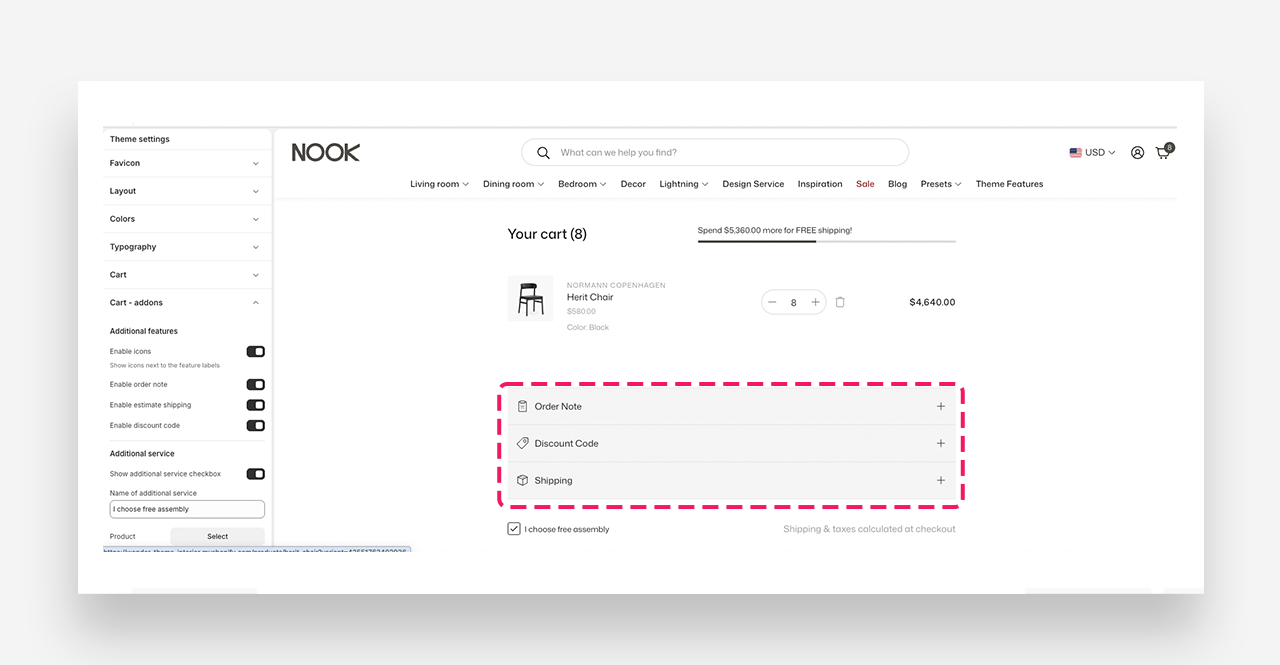
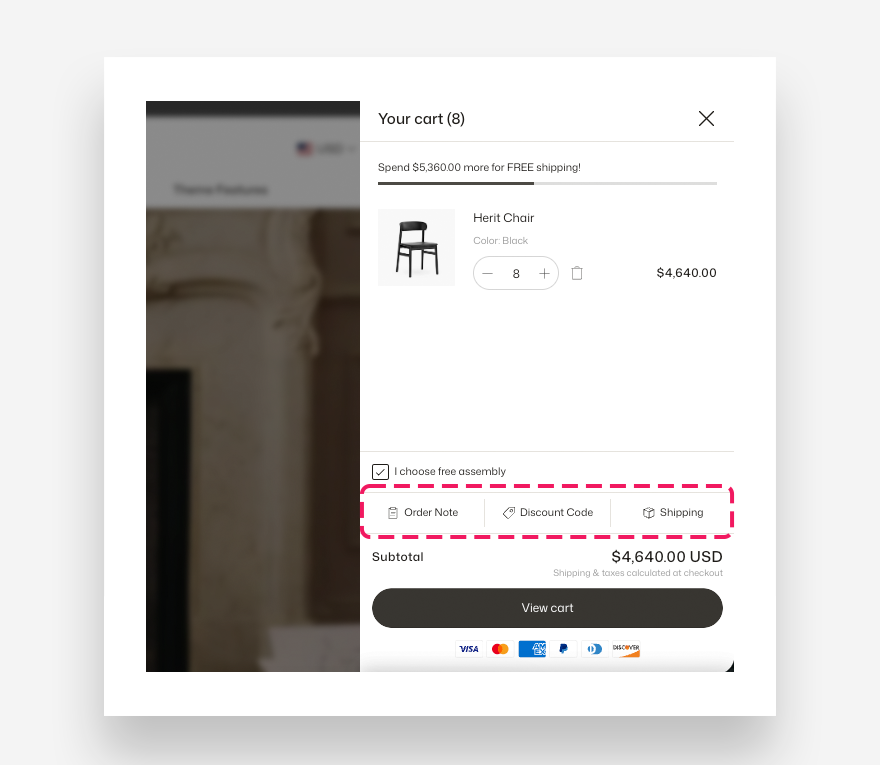
Three optional panels at the bottom of the cart: Order Note, Discount Code, and Estimate Shipping. On mobile and in the drawer, tapping a feature slides up a panel from the bottom. On the cart page on desktop, tapping a feature expands it as an inline accordion.
- Enable icons — Show a small icon next to each feature label. Turn off for a text-only look.
- Enable order note — Let shoppers add a note to their order (e.g. gift wrap requests, delivery instructions). The note is saved with the order in your Shopify admin.
- Enable estimate shipping — Let shoppers enter a country and postal code to preview shipping rates before checkout.
- Enable discount code — Let shoppers apply discount codes directly in the cart. The cart total updates immediately.
Desktop view example
Mobile view example
Additional service
An optional checkbox that adds a single configured product to the cart with one click — typically used for gift wrapping, donation matching, or warranty add-ons.
- Show additional service checkbox — Turn the checkbox on or off.
- Name of additional service — The label shown next to the checkbox.
- Product — The product added to the cart when the checkbox is ticked.
- Show quantity and remove button for checkbox product — When on, the service product appears in the cart items list with a quantity selector and remove button. When off, it is hidden from the items list but still added to the cart at checkout.
Important: Keep "Show quantity and remove button for checkbox product" turned off unless you have a specific reason to allow it. When enabled, shoppers can increase the quantity of the service product, which may lead to unintended multiple charges (e.g. paying for gift wrapping twice). Disabling this option ensures the service is added exactly once and cannot be manually adjusted in the cart.
Example: Gift wrapping
Cross-sells
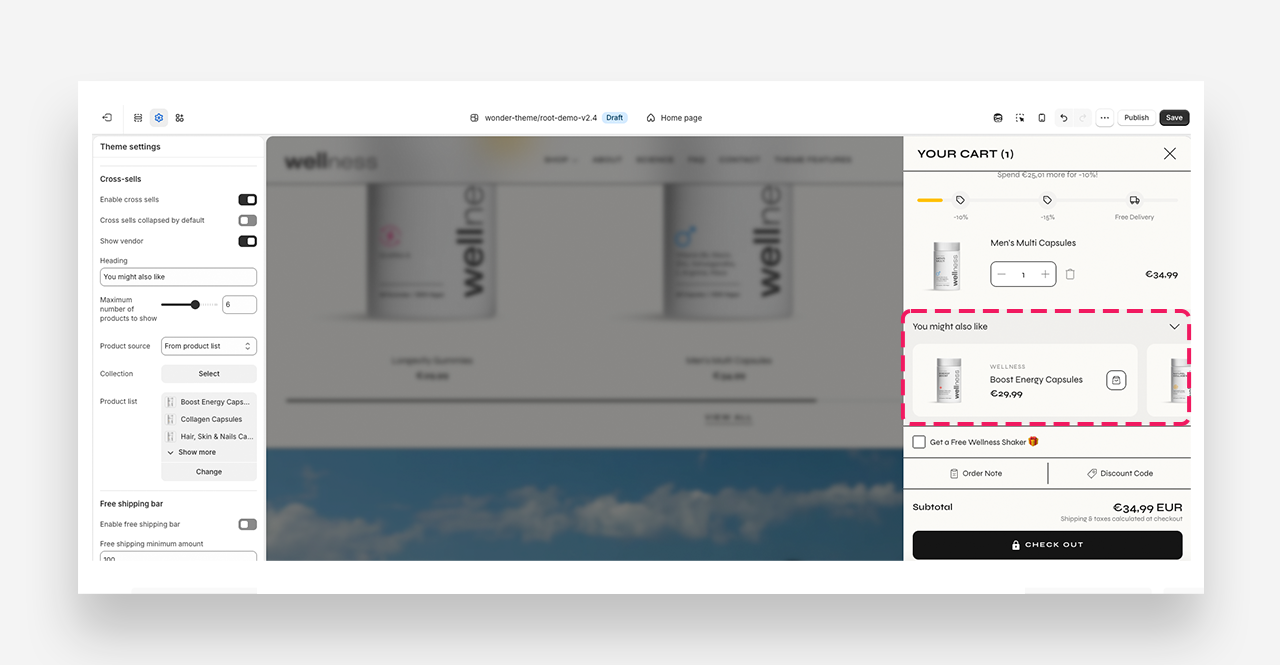
Product recommendations shown inside the cart drawer to encourage shoppers to add one more item before checkout. Cross-sells only appear in the drawer (not the cart page) and only when the cart is not empty.
- Enable cross sells — Turn the cross-sell row on or off.
- Cross sells collapsed by default — Start the cross-sell row collapsed so shoppers can expand it manually.
- Show vendor — Show the product vendor name on each cross-sell card.
- Heading — The heading above the cross-sell products (e.g.
You might also like). - Maximum number of products to show — How many products appear in the row (1–9).
- Product source — Choose From collection (auto-pulls from a collection) or From product list (up to 9 hand-picked products).
- Collection — The collection to pull cross-sell products from. Only applies when Product source is From collection.
- Product list — Up to 9 hand-picked products. Only applies when Product source is From product list.
Example: Cross-sells
Free shipping bar
Not compatible with dynamic exchange rates — If your store uses Shopify Markets with automatic currency conversion, the bar may not work correctly. For multi-currency stores with fixed rates, use the threshold format USD:120|PLN:400|EUR:90 to define separate values per currency.
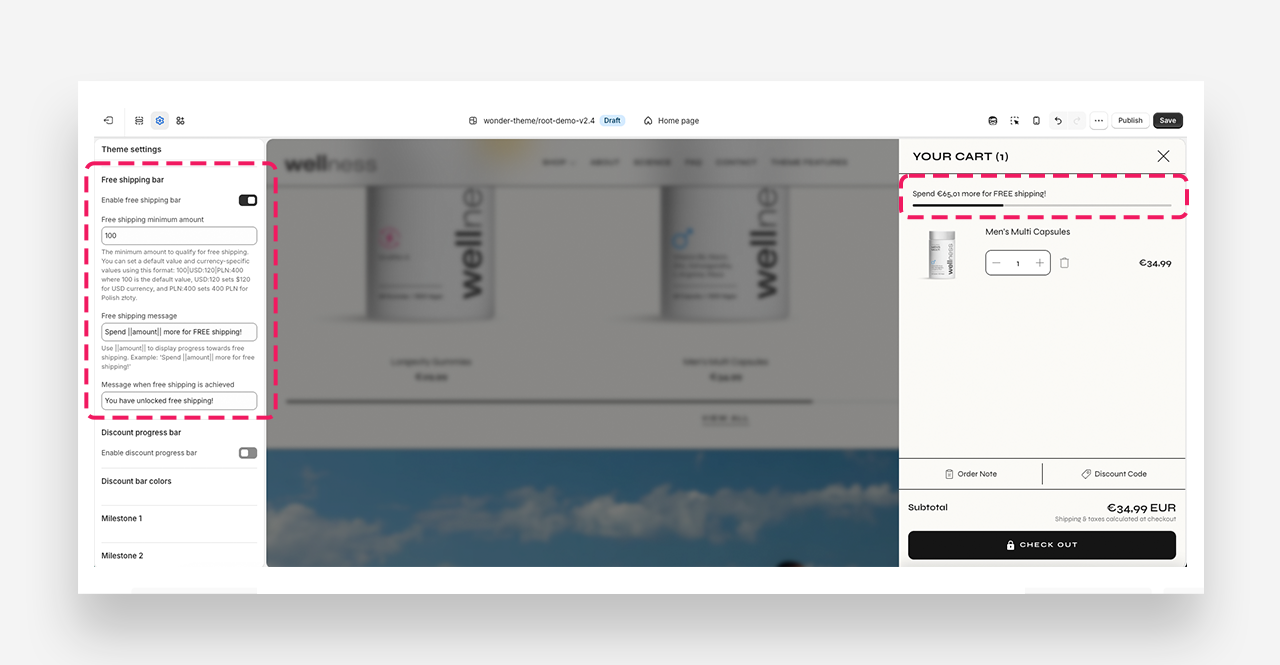
A progress bar showing shoppers how close they are to qualifying for free shipping.
- Enable free shipping bar — Turn the bar on or off.
- Free shipping minimum amount — The cart total required to unlock free shipping. Enter a plain number (e.g.
100) for single-currency stores. For multi-currency stores use the format100|USD:120|PLN:400|EUR:90— the first value is the default for any unlisted currency, followed byCODE:valuepairs per currency. - Free shipping message — Text shown before the threshold is reached. Use
||amount||as a placeholder for the remaining amount (e.g.Spend ||amount|| more for FREE shipping!). - Message when free shipping is achieved — Text shown once the threshold is met.
Example: Free shipping bar
Discount progress bar
Not compatible with dynamic exchange rates — If your store uses Shopify Markets with automatic currency conversion, the progress bar may not work correctly. For multi-currency stores with fixed rates, use the threshold format USD:120|PLN:400|EUR:90 to define separate milestone values per currency.
This feature works exclusively with discounts created in your Shopify admin panel. Make sure your discount codes or automatic discounts are set up in Shopify Admin before configuring the milestones here.
A progress bar with up to three milestones, each unlocking a discount tier. Available since v2.4.0.
Discount progress bar example
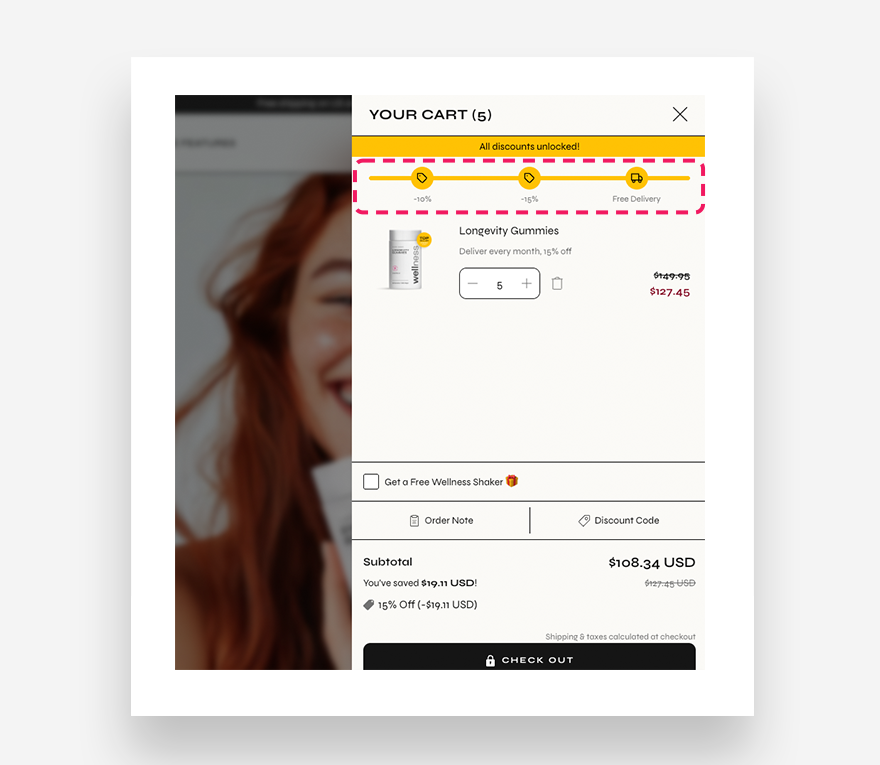
- Enable discount progress bar — Turn the bar on or off.
Once enabled, configure Colors and up to three Milestones.
Colors
- Text color — Colour of the progress message text.
- Background color — Background of the message area.
- Success text color — Text colour when all milestones are reached.
- Success background color — Background colour when all milestones are reached.
- Progress bar color — The unfilled part of the progress bar.
- Active progress bar color — The filled part of the progress bar.
- Milestone label color — Colour of the label under each milestone icon.
- Milestone icon color — Colour of an unachieved milestone icon.
- Active milestone icon color — Colour of an achieved milestone icon.
Milestone 1, 2, 3
Each milestone shares the same five settings. Set milestones in ascending order — Milestone 1 must be lower than Milestone 2, which must be lower than Milestone 3.
- Enable Milestone N — Turn this milestone on or off. Use 1, 2, or all 3.
- Threshold — The cart total needed to unlock this milestone. Supports the same multicurrency format as the free shipping bar.
- Label — Short label shown under the milestone icon (e.g.
-10%,Free gift). - Message — Progress message while the milestone hasn't been reached. Use
||amount||for the remaining amount and||label||for this milestone's label. - Icon type — Icon inside the milestone circle: None, Box, Price tag, or Truck.
- Image — Upload a custom icon image. Overrides Icon type when set.
- All-achieved label — Message shown when every milestone has been reached (e.g.
All discounts unlocked!). Shown after the last milestone's settings.