Pills Navigation
What is the Pills Navigation section?
Since v2.4.0
The Pills Navigation section displays a collection of clickable pill-shaped buttons, each linking to a page or collection. It is ideal for highlighting key categories, curated selections, or navigation shortcuts in a visually distinctive, tag-like layout.
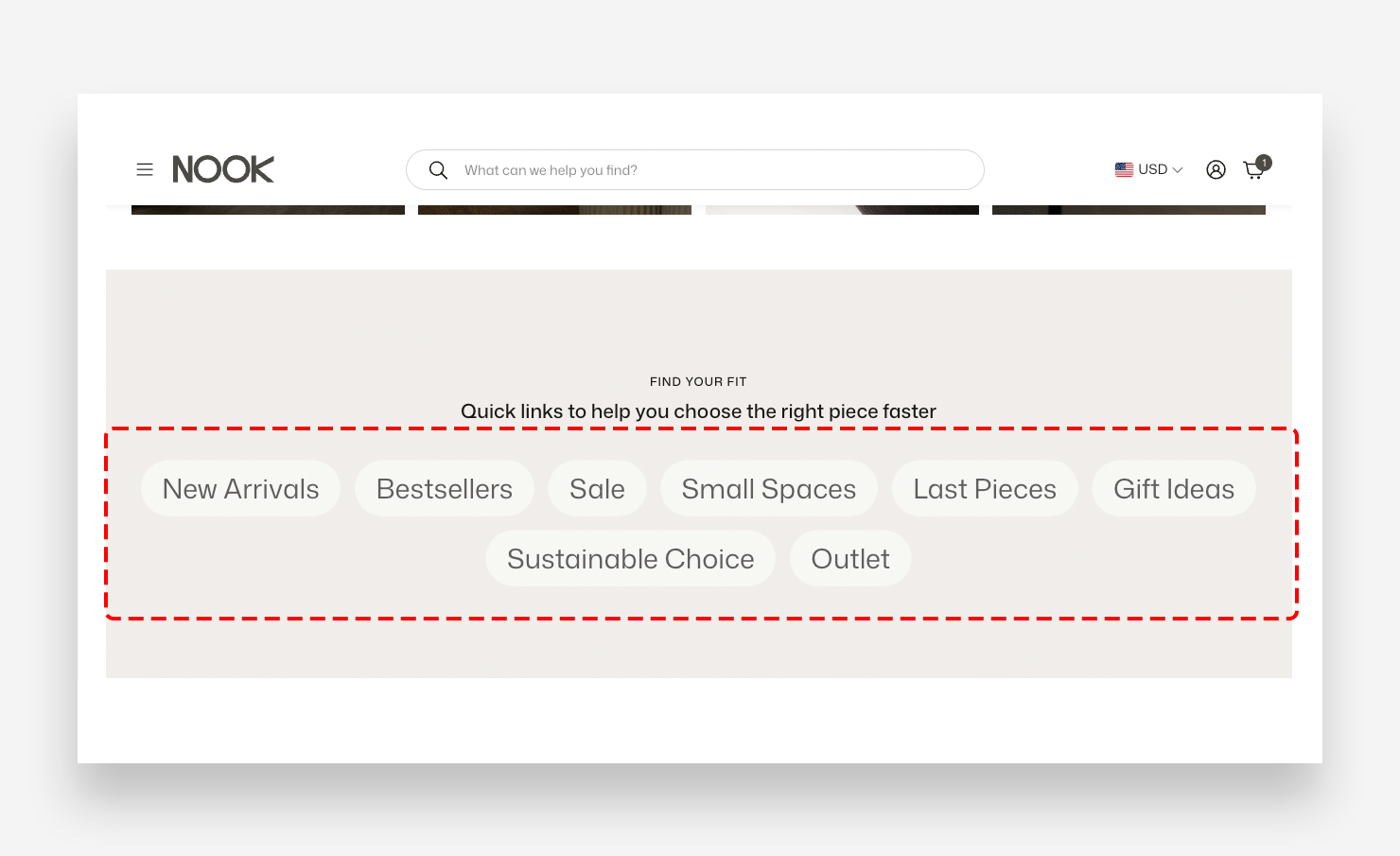
Main Settings
General
- Headline — Add an optional heading displayed above the pills.
- Make section full width — Enable this toggle to stretch the section to the full width of the screen.
Pills
- Pill style — Choose between Primary and Secondary visual styles for the pill buttons.
- Text style — Choose between Body and Heading text styling for the pill labels.
- Enable custom border radius — Enable this toggle to apply a custom border radius to the pills and their images.
- Border and image radius — Set the corner radius applied to the pill buttons and any images within them. Applied only when Enable custom border radius is enabled.
Large Screen Version
- Font size — Adjust the font size of the pill labels on large screens.
- Gap between pills — Set the spacing between individual pill buttons on desktop.
- Desktop layout — Set the horizontal alignment of the pills on desktop — Left or Center.
Mobile Version
- Font size — Adjust the font size of the pill labels on mobile devices.
- Gap between pills — Set the spacing between individual pill buttons on mobile.
- Mobile layout — Set the horizontal alignment of the pills on mobile — Left or Center.
Pill Colors
- Background color — Set the background color of the pill buttons.
- Text color — Set the text color of the pill labels.
- Hover background color — Set the background color of a pill button on hover. Defaults to the value set in global settings.
- Hover text color — Set the text color of a pill label on hover. Defaults to the value set in global settings.
Colors
- Text color — Define the global text color for the section.
- Background color — Set the background color of the entire section.
Section Spacing
- Distance from the top — Adjust the spacing above the section.
- Distance from the bottom — Adjust the spacing below the section.
- Show custom mobile spacing — Enable this toggle to set custom spacing values specifically for mobile devices.
- Distance from the top mobile — Adjust the spacing above the section on mobile. Applied only when Show custom mobile spacing is enabled.
- Distance from the bottom mobile — Adjust the spacing below the section on mobile. Applied only when Show custom mobile spacing is enabled.
Pill
Each Pill is an individual block within the Pills Navigation section. It contains an optional image, a text label, and a link — displayed together as a single clickable pill button.
Settings
- Image — Upload an optional image to display inside the pill button.
- Title — Enter the label text displayed on the pill button.
- Link — Set the destination URL or page the pill links to when clicked.