Contact Form with Image
What is the Contact Form with Image section?
Since v2.4.0
The Contact Form with Image section combines a visual media panel with a contact form side by side, allowing visitors to get in touch while reinforcing the brand aesthetic. The media panel supports both images and videos on desktop and mobile independently.
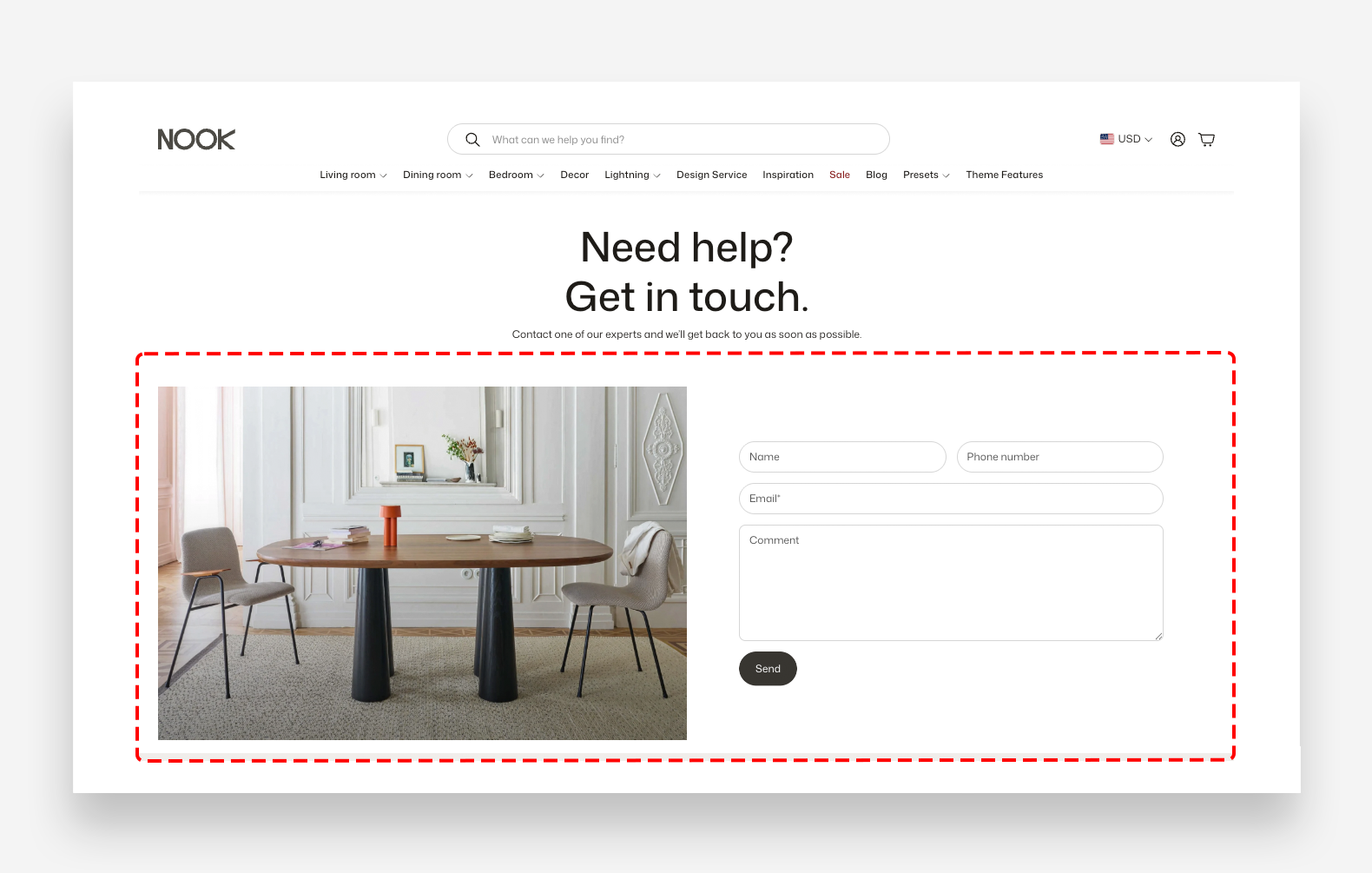
Main settings
General
- Make section full width: Enable this toggle to stretch the section to the full width of the screen.
Large Screen Version
- Video: Upload or select a video to display in the media panel on desktop.
- Image: Upload the image to display in the media panel on desktop. Shown when no video is selected.
Mobile Version
- Video: Upload or select a video to display in the media panel on mobile devices.
- Image: Upload the image to display in the media panel on mobile devices. Shown when no video is selected.
Section Height
- Height: Choose between Adapt to image, which adjusts the section height based on the media, or Fixed height, which sets a specific height regardless of the media.
- Desktop fixed height: Define the fixed height of the section on desktop. Applied only when Fixed height is selected.
- Mobile fixed height: Define the fixed height of the section on mobile devices. Applied only when Fixed height is selected.
Colors
- Text color: Define the global text color for the section.
- Background color: Set the background color of the entire section.
Section Spacing
- Distance from the top: Adjust the spacing above the section.
- Distance from the bottom: Adjust the spacing below the section.
- Show custom mobile spacing: Enable this toggle to set custom spacing values specifically for mobile devices.
- Distance from the top mobile: Adjust the spacing above the section on mobile. Applied only when Show custom mobile spacing is enabled.
- Distance from the bottom mobile: Adjust the spacing below the section on mobile. Applied only when Show custom mobile spacing is enabled.
Blocks
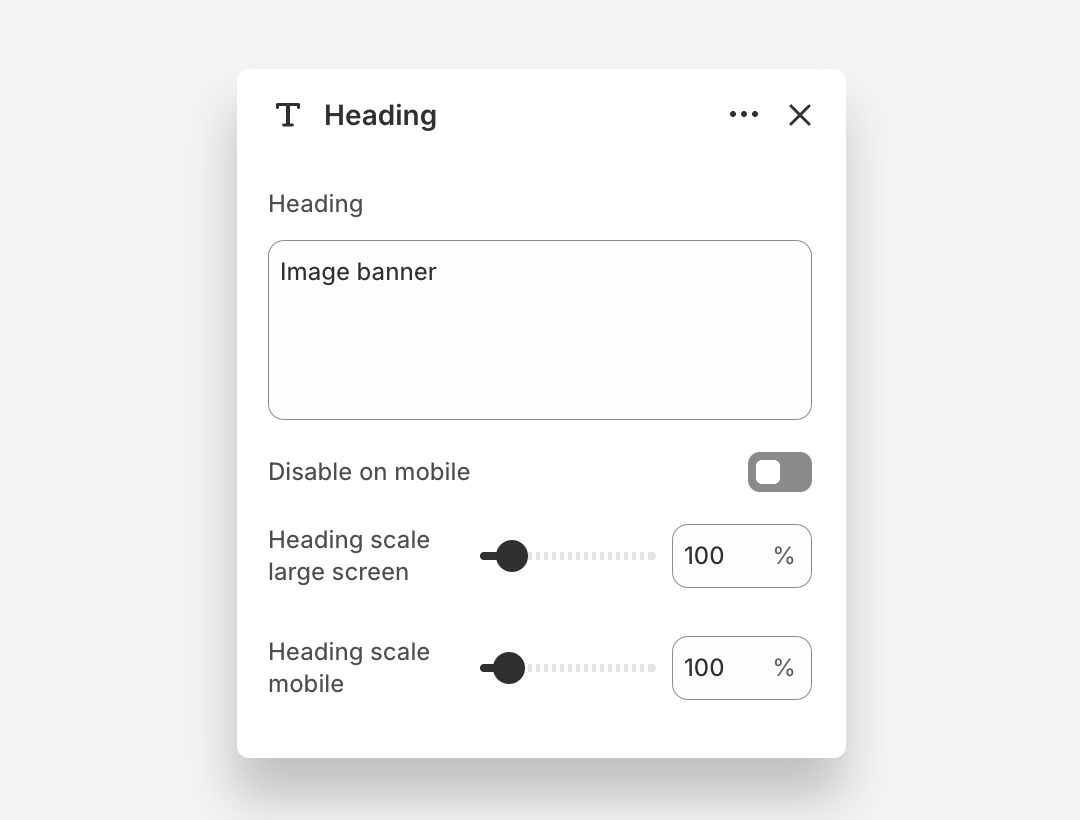
Heading Block
- Heading: Enter the heading text displayed on the banner.
- Disable on mobile: Hide this heading block on mobile devices.
- Heading scale large screen: Adjust the font size of the heading on large screens.
- Heading scale mobile: Adjust the font size of the heading on mobile devices.
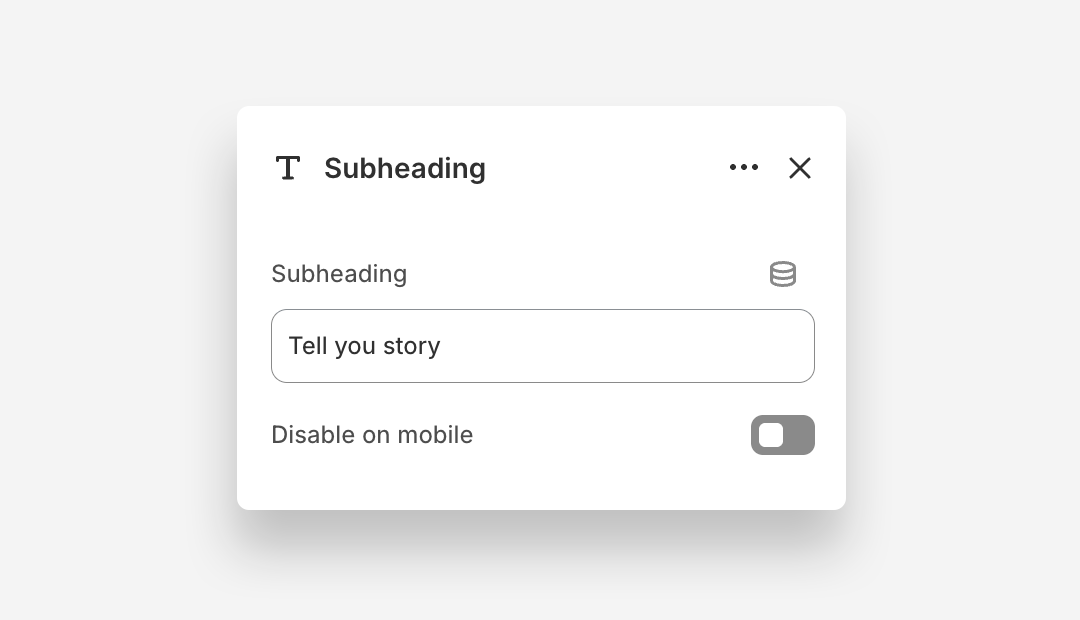
Subheading Block
- Subheading: Enter the subheading text.
- Disable on mobile: Hide this subheading block on mobile devices.
Email Form Block
The Email Form is the submit button block within the Contact Form with Image section. It controls the label and visual style of the form's send button.
- Text: Set the label displayed on the form submission button.
- Style: Choose the visual style of the button.