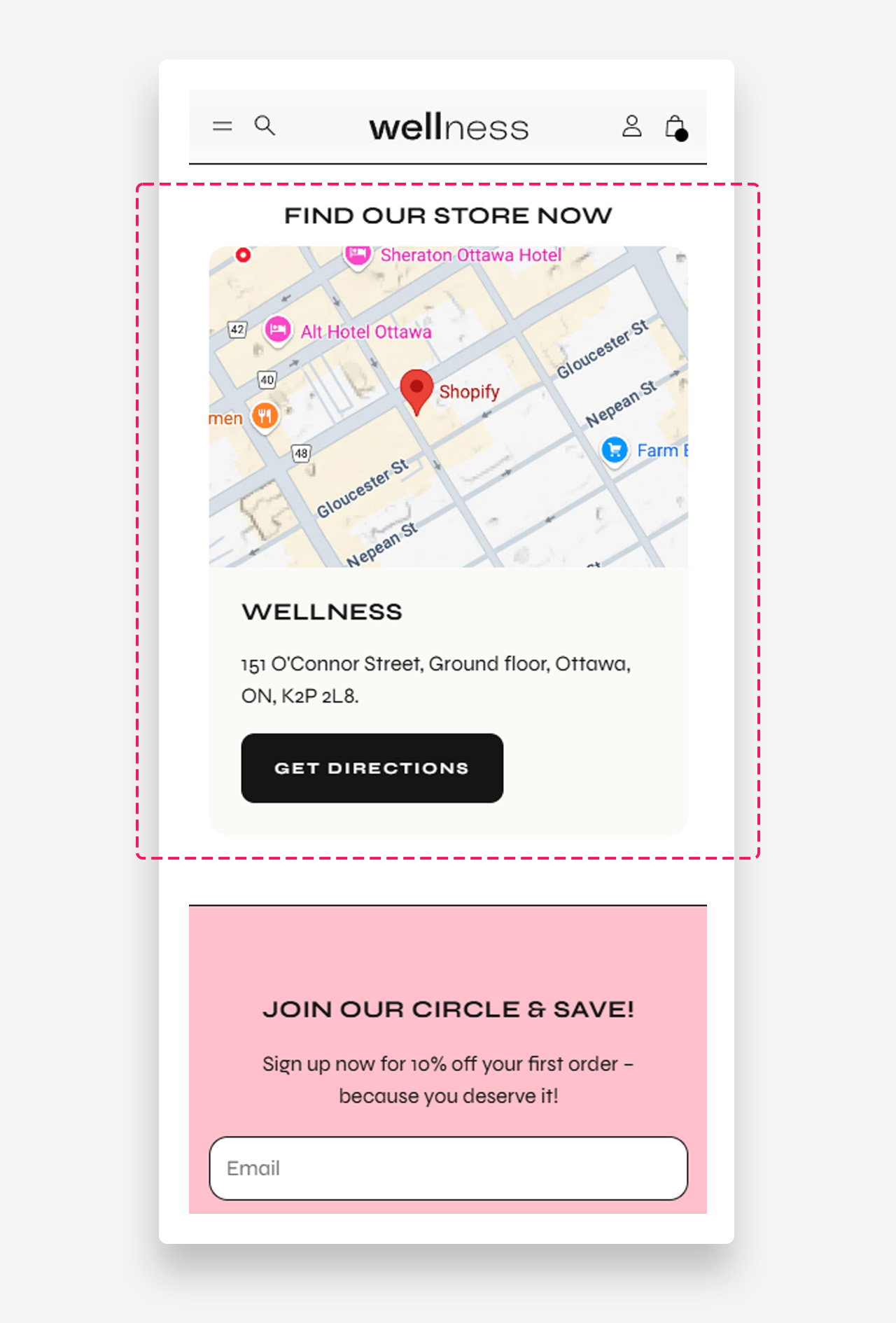
Map section
What is the Map section?
Since v1.7.0
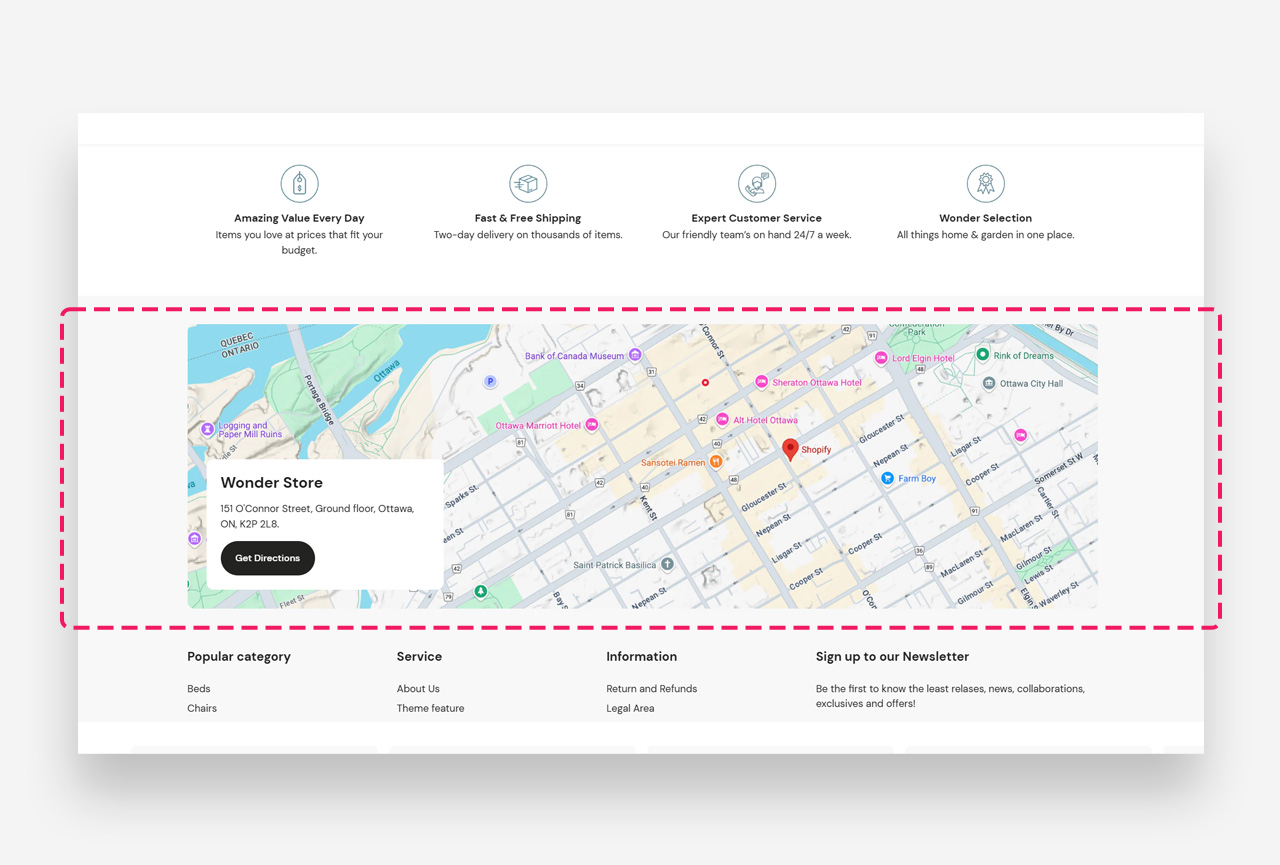
The Map Section allows you to showcase your store location using Google Maps API or a custom static image . This section helps customers easily find your business, get directions, and build trust. With dedicated blocks for store details, you can add your address, contact information, and a call-to-action button for navigation. Whether you prefer an interactive map or a custom design, this section ensures seamless location visibility.
Main settings
General
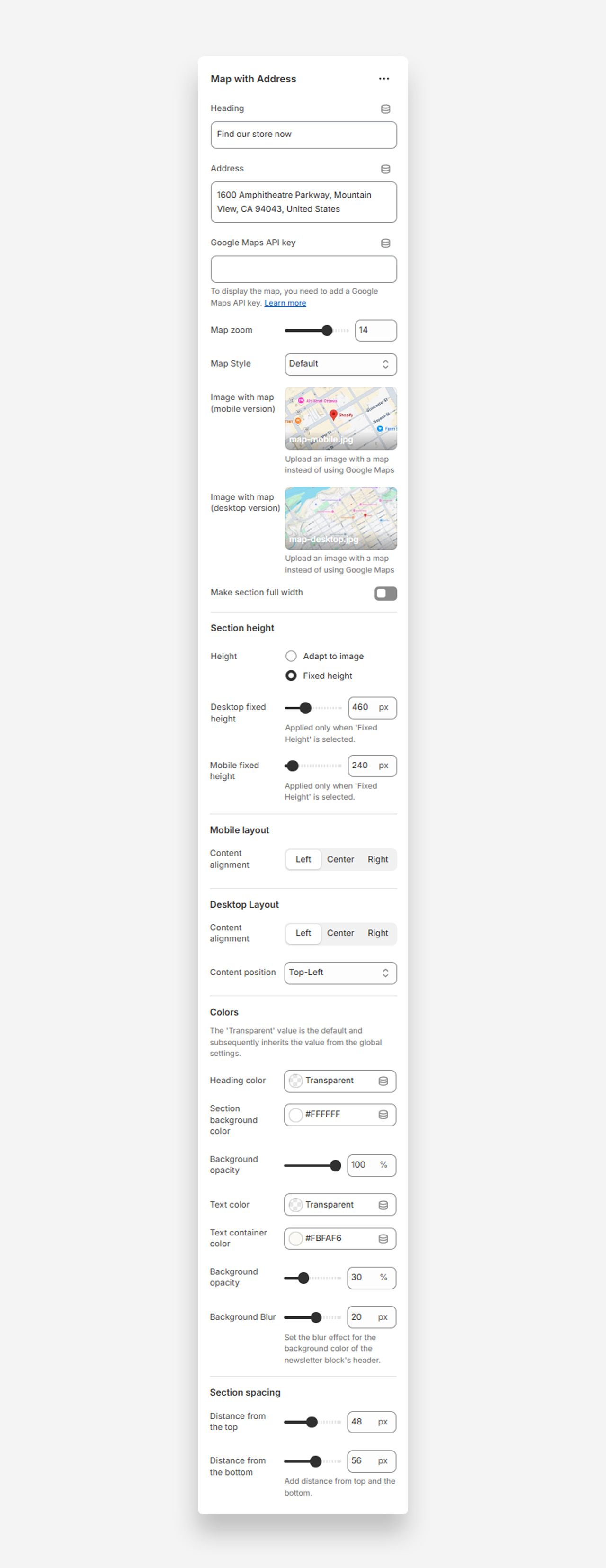
- Heading – Allows you to set a title for the map section, such as "Find our store now," to provide context for visitors.
- Address – Enter the physical store address that will appear on the map.
- Google Maps API key – Required for displaying an interactive Google Map. You need to obtain an API key from the Google Cloud Console and enter it here.
- Map zoom – Adjust the zoom level of the map. A lower value shows a wider area, while a higher value zooms in on the specific location.
- Map Style – Select a predefined Google Maps style to match your store's branding and aesthetics.
- Image with map (mobile version) – Upload a custom map image that will be displayed on mobile devices instead of the interactive Google Map.
- Image with map (desktop version) – Upload a custom map image that will be displayed on desktop devices instead of the interactive Google Map.
- Make section full width – Enable this setting to expand the map section to cover the full width of the page.
Section Height
- Height – Choose whether the section height should adapt to the image size or remain fixed.
- Desktop fixed height – Set a specific height (in pixels) for the map section on desktop when "Fixed Height" is selected.
- Mobile fixed height – Set a specific height (in pixels) for the map section on mobile when "Fixed Height" is selected.
Mobile Layout
- Content alignment – Adjust the text alignment on mobile devices (Left, Center, Right).
Desktop Layout
- Content alignment – Adjust the text alignment on desktop devices (Left, Center, Right).
- Content position – Choose where the text box appears over the map on desktop (e.g., Top-Left).
Colors
- Heading color – Customize the text color of the section heading.
- Section background color – Set a background color for the entire section.
- Background opacity – Adjust the transparency of the background color.
- Text color – Define the color of the text in the content area.
- Text container color – Set a background color for the text container.
- Background opacity – Adjust the transparency level of the text container background.
- Background blur – Apply a blur effect to the background behind the text.
Spacing
- Distance from the top – Add spacing (in pixels) above the section.
- Distance from the bottom – Add spacing (in pixels) below the section.
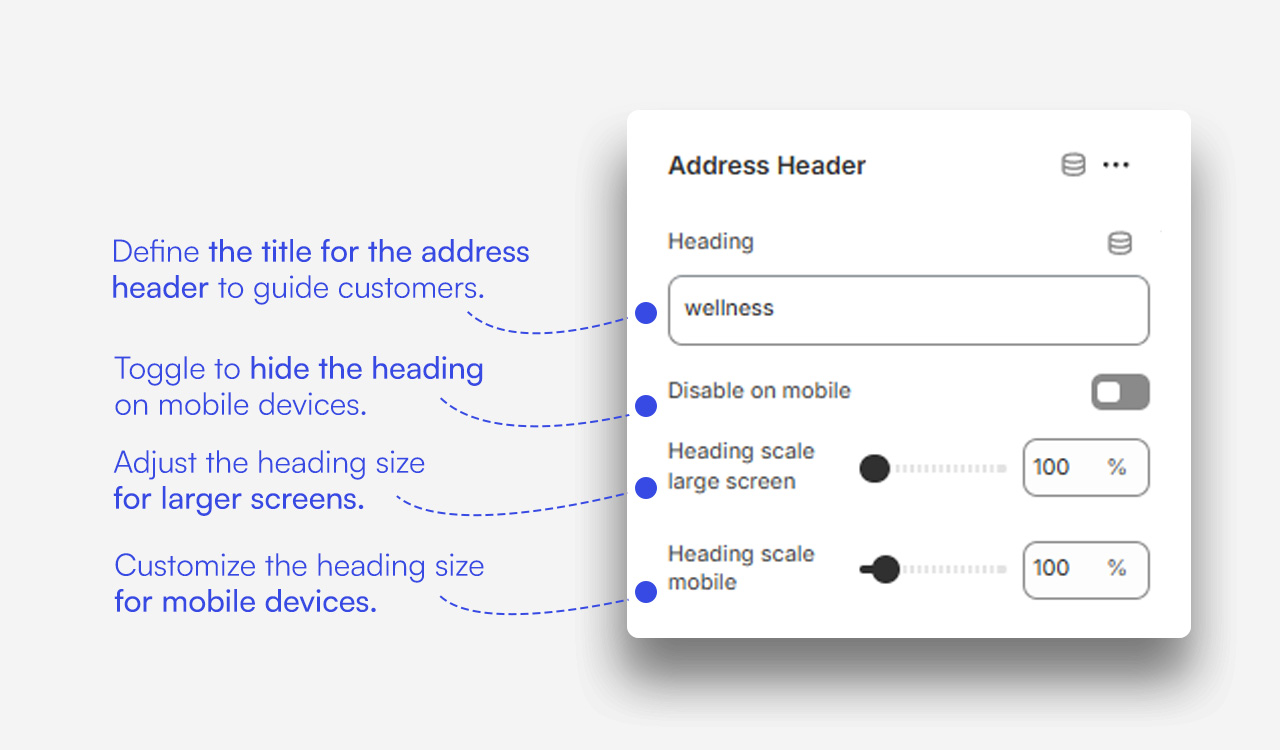
Customize Address header block
Click one of the preloaded Address header block to customize it.
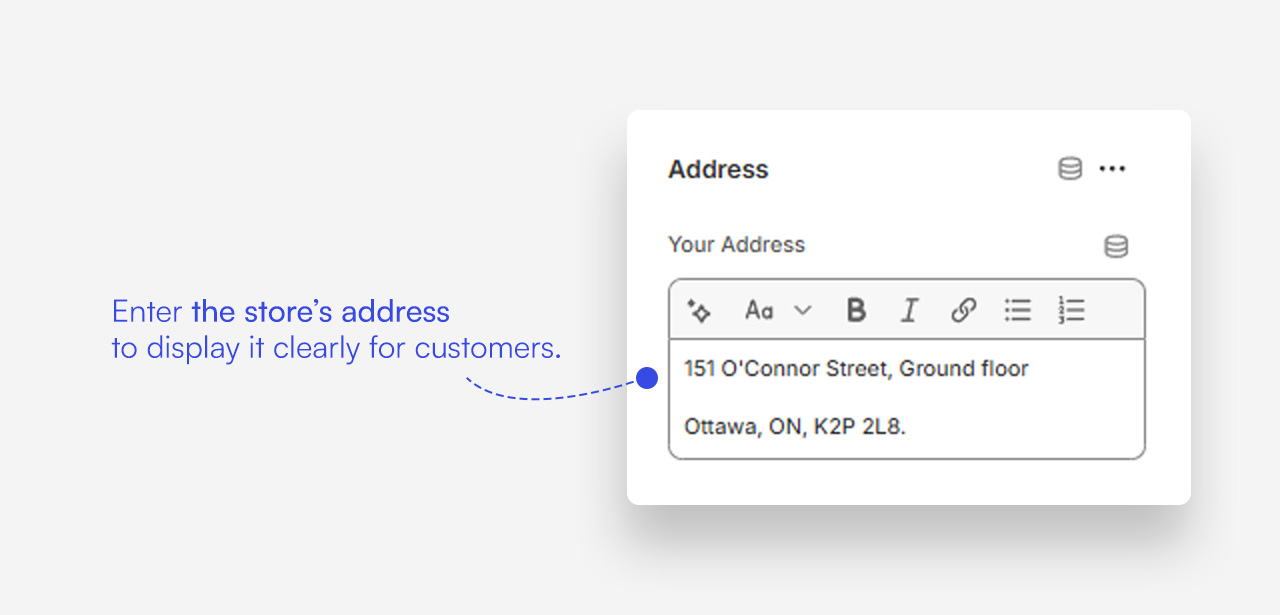
Customize Address block
Click one of the preloaded Address block to customize it.
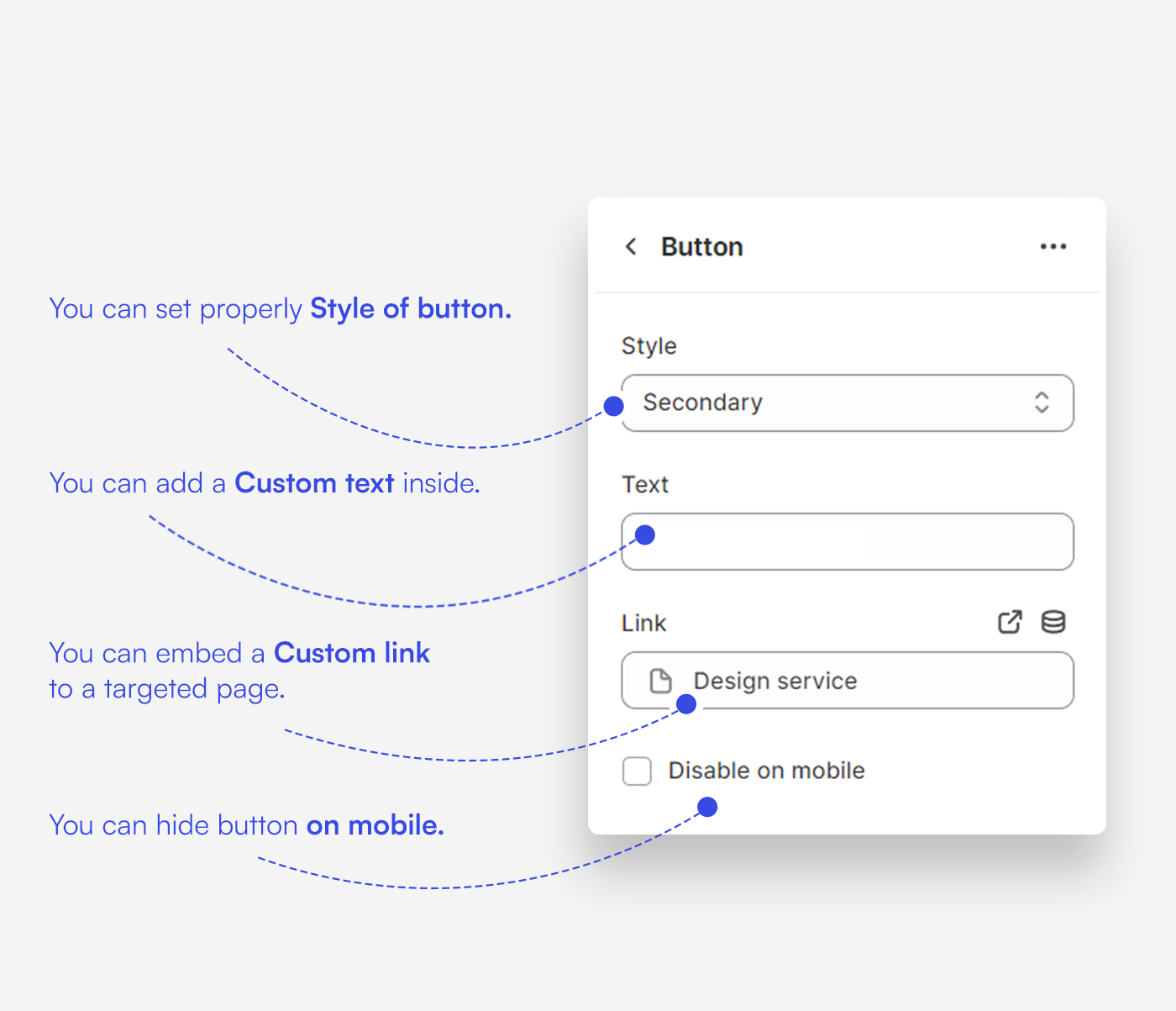
Customize Button block
Click one of the preloaded Button block to customize it.
Mobile view example