Notification Pop-up
What is the Notification Pop-up section?
Since v1.7.0
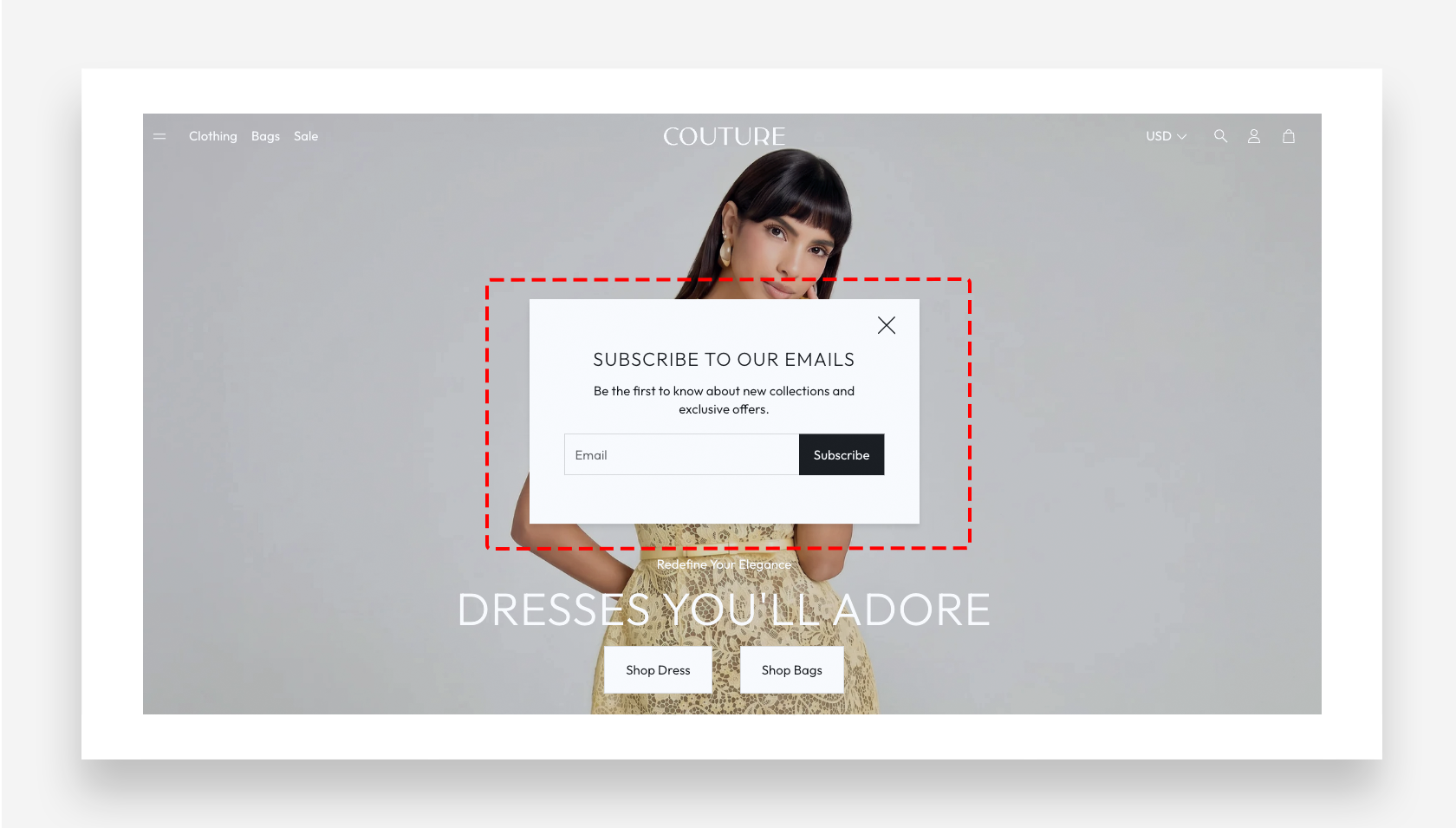
The Notification Pop-up section, part of the Header Group , provides an elegant way to capture visitor emails and grow your subscribers list. Designed for a seamless user experience, it allows you to add custom text, images, and a contact form while maintaining a modern, minimalistic look. Once dismissed, the pop-up will reappear after 7 days unless the customer has already subscribed (has the newsletter customer tag).
Main Settings
General
- Maximum width – Set the maximum width of the popup window.
- Popup Appearance Delay – Set the delay in seconds before the popup appears after the page loads.
- Show border – Enable this toggle to display a border around the popup window.
- Show shadow – Enable this toggle to display a shadow beneath the popup window.
Mobile Version
- Image – Upload an image to display inside the popup on mobile devices.
Large Screen Version
- Image – Upload an image to display inside the popup on desktop.
- Vertical alignment – Set the vertical alignment of the content within the popup — Top, Center, or Bottom.
- Horizontal alignment – Set the horizontal alignment of the content within the popup — Left, Center, or Right.
Colors
- Text color – Define the global text color for the popup.
- Background color – Set the background color of the popup window.
Blocks
Custom Liquid
- Custom Liquid – Add app snippets or other Liquid code to create advanced customizations within the popup.
Heading
- Heading – Enter the heading text displayed at the top of the popup.
- Disable heading on mobile – Enable this toggle to hide the heading on mobile devices.
- Heading scale large screen – Adjust the font size of the heading on large screens.
- Heading scale mobile – Adjust the font size of the heading on mobile devices.
Subheading
- Text – Enter the subheading text displayed below the heading in the popup.
- Disable on mobile – Enable this toggle to hide the subheading on mobile devices.
Email Form
The Email Form block displays an email input field and a subscribe button inside the popup.
- Style – Choose the visual style of the submit button — Primary or Secondary.
- Button label – Set the label displayed on the submit button. Add custom text to replace the default "Subscribe".