Image Banner (Image banner for transparent header)
What is the Image Banner section?
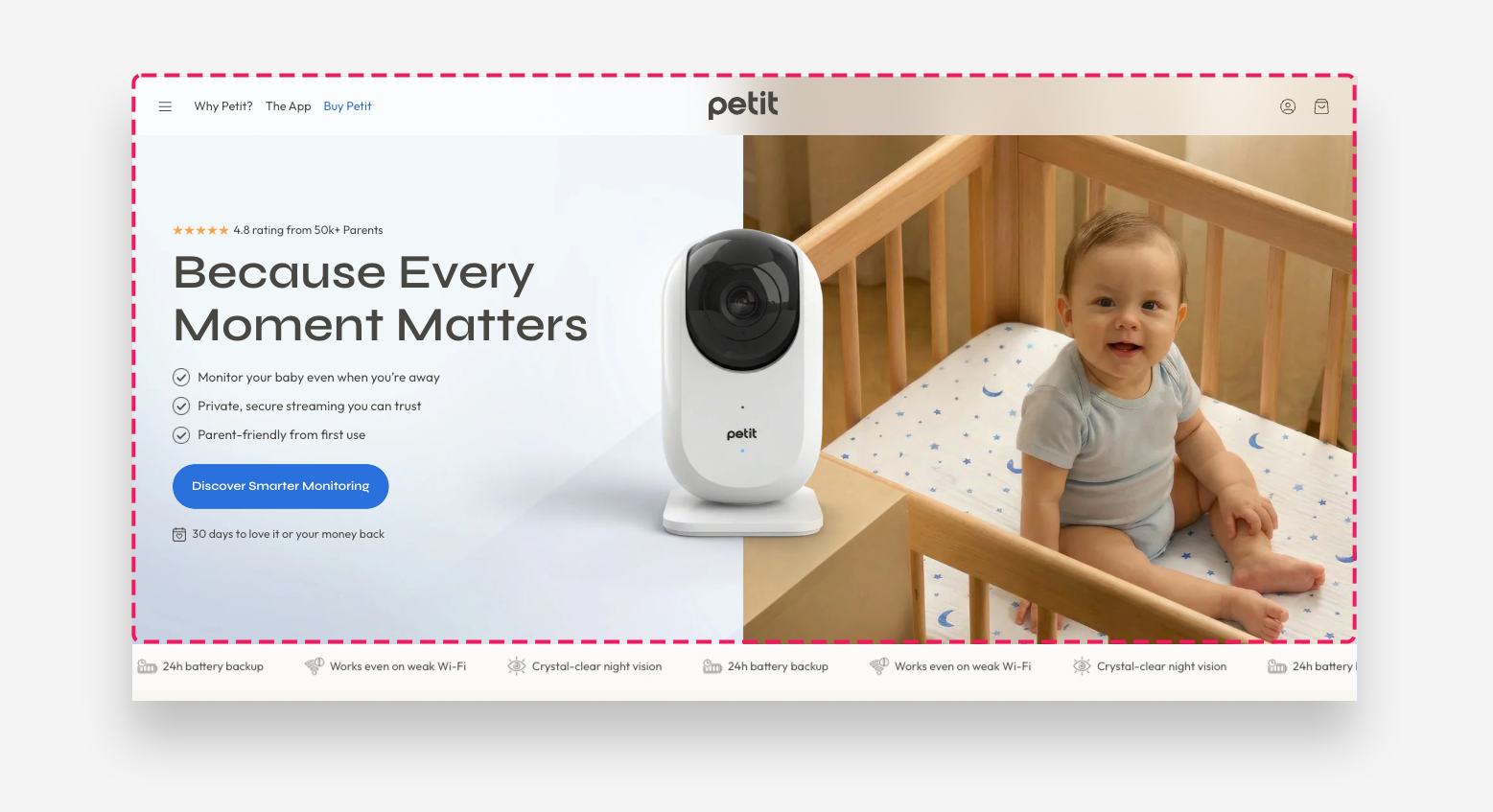
The Image Banner for Transparent Header is a full-screen hero section designed to be used as the first section on the page. It combines a background image or video with flexible content blocks including icons with text, headings, buttons, and more. This section is required for the Transparent Menu header layout to work correctly.
To display a transparent header over this section, go to the Header settings and set the Layout to Transparent menu or Transparent menu, logo left.
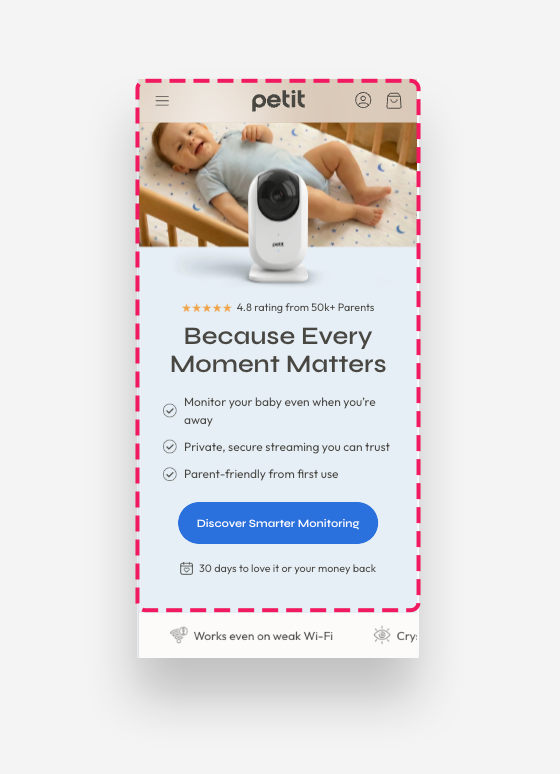
Mobile view example
Main Settings
Section Height
This setting works only with images.
- Height: Choose between Adapt to image, which adjusts the section height based on the image, or Fixed height, which sets a specific height regardless of the image.
- Desktop fixed height: Define the fixed height of the section on desktop. Applied only when Fixed height is selected.
- Mobile fixed height: Define the fixed height of the section on mobile devices. Applied only when Fixed height is selected.
Shopify-hosted Video
Videos play on loop with no sound.
- A Shopify-hosted video: Upload or select a video to display as the background on desktop. When a video is selected, it takes priority over the background image.
Shopify-hosted Video for Mobile
Videos play on loop with no sound.
- A Shopify-hosted video: Upload or select a video to display as the background on mobile devices.
Large Screen Version
- Image: Upload the background image displayed on desktop.
- Large screen text alignment: Set the vertical alignment of the content on desktop — Top, Center, or Bottom.
- Horizontal alignment: Set the horizontal alignment of the content on desktop — Left, Center, or Right.
Mobile Version
- Image: Upload the background image displayed on mobile devices.
- Mobile screen text alignment: Set the vertical alignment of the content on mobile — Top, Center, or Bottom.
- Horizontal alignment: Set the horizontal alignment of the content on mobile — Left, Center, or Right.
- Show text below image: Enable this toggle to display the content below the image instead of over it on mobile devices.
- Background color: Set the background color of the text area displayed below the image on mobile. Applied only when Show text below image is enabled.
- Text color: Set the text color of the content displayed below the image on mobile. Applied only when Show text below image is enabled.
Color
- Text color: Define the global text color for the section.
- Background color: Set the background color of the entire section.
- Background opacity: Adjust the opacity of the section background color.
Blocks
Spacer
- Desktop spacer height: Set the height of the empty space added between blocks on desktop.
- Mobile spacer height: Set the height of the empty space added between blocks on mobile devices.
Icon with Text
- Image: Upload a custom icon image to display alongside the text.
- Select icon: Choose a built-in icon to display. Used when no custom image is uploaded.
- Horizontal alignment desktop: Set the horizontal alignment of the icon and text on desktop.
- Horizontal alignment mobile: Set the horizontal alignment of the icon and text on mobile devices.
- Align icon to top: Enable this toggle to align the icon to the top of the text instead of centering it vertically.
- More icon settings: Enable this toggle to reveal additional icon sizing and spacing controls.
- Icon scale desktop: Set the size of the icon on desktop.
- Icon scale mobile: Set the size of the icon on mobile devices.
- Icon top margin desktop: Set the top margin of the icon on desktop.
- Icon top margin mobile: Set the top margin of the icon on mobile devices.
- Text: Enter the text displayed alongside the icon.
- Text scale large screen: Adjust the font size of the text on large screens.
- Text scale mobile screen: Adjust the font size of the text on mobile devices.
- Gap: Set the spacing between the icon and the text.
- Distance from the top: Adjust the spacing above the icon with text block.
- Distance from the bottom: Adjust the spacing below the icon with text block.
- Spacing from the left desktop: Set the left offset of the block on desktop.
- Spacing from the left mobile: Set the left offset of the block on mobile devices.
Heading
- Heading: Enter the main heading displayed over the banner.
- Disable on mobile: Enable this toggle to hide this heading block on mobile devices.
- Heading scale large screen: Adjust the font size of the heading on large screens.
- Heading scale mobile: Adjust the font size of the heading on mobile devices.
Button
The Button block supports two buttons displayed side by side.
- Style: Choose the visual style of the button.
- Text: Set the label displayed on the button.
- Disable on mobile: Enable this toggle to hide this button on mobile devices.
- Link: Set the destination URL or page the button links to when clicked.
Text
- Text: Enter the body text displayed over the banner.
- Text style: Choose between Subtitle and Body styling for the text.
- Disable on mobile: Enable this toggle to hide this text block on mobile devices.
Subheading
- Subheading: Enter the subheading text displayed over the banner.
- Disable on mobile: Enable this toggle to hide this subheading block on mobile devices.
- Subheading advanced settings: Enable this toggle to reveal additional subheading styling options.