How to Set Up a Size Guide per Product
How to Set Up a Size Guide per Product
The Wonder Theme includes a built-in popup that can display a size chart sourced from a product metafield, a Shopify page, or both — and automatically shows different content per product when using metafields.
There are two places to set it up, and both use the same settings:
- Variant Picker block — the size guide link appears in the same row as a specific variant option (typically "Size"). Use this when the guide belongs next to the option it explains.
- Information popup block — a standalone block you can place anywhere in the product information column. Use this when the guide is not tied to a variant option, or when the product has no variant options at all.
Both are available on the Product section and the Featured product section.
Settings Overview
In the Variant Picker block these settings live under the Size guide popup header. In the Information popup block they are the block's own settings.
- Icon — Choose an icon displayed next to the size guide link (e.g. ruler, shirt, question mark, or none). Default:
check_mark, so pick a more fitting icon such as ruler if you want one. - Link text — The clickable text displayed next to the variant option (e.g. "Size guide", "Size chart"). Required — if this is empty, nothing is rendered at all, no matter what the other settings contain.
- Variant name — (Variant Picker only) Enter the variant option name that the size guide should appear next to. For most stores this is
Size. Matching is case-insensitive but must be otherwise exact:SizematchessizeandSIZE, but notShoe size. If no option name matches, the link is not rendered. - Content — Select a Shopify page to use as the popup content. The page's title becomes the popup heading and its body content is displayed. Useful when the size guide is the same for all products.
- Metafield — Provide a metafield namespace and key (format:
namespace.key) to pull a per-product size chart from product metafields. The metafield type must be multi-line text. Use this when each product needs its own size chart. - Enable striped rows table layout — When enabled, odd rows in the metafield size table have a grey background for easier reading. Enabled by default. Affects only the metafield table, not content coming from a page.
How the Content Priority Works
Everything depends on Link text first: with it empty, no link and no popup are output. With it filled, the link always appears, and the popup content is assembled from the remaining settings:
| Settings filled | What the popup shows |
|---|---|
| Metafield only | Link text as the heading, then the size table from the product metafield |
| Content (page) only | Page title as the heading, then the page body content |
| Both metafield and content | Page title as the heading, then the metafield size table, then the page body content |
| Neither | The link still appears, and the popup opens with only the Link text as its heading and no content below it |
Because the heading is taken from the page title whenever a page is selected, the Link text is used as the heading only when Content is left empty.
Metafield Format for Per-Product Size Charts
Create a product metafield with type multi-line text (Shopify admin → Settings → Metafields and metaobjects → Products → Add definition).
Use the following format in the metafield value:
- Use
|(pipe) to separate columns within a row - Use new lines to separate rows
- Prefix a cell with
#to render it as a header (<th>) instead of a regular cell (<td>)
Example metafield value:
#Size | #Chest (cm) | #Waist (cm)
S | 88-92 | 72-76
M | 96-100 | 80-84
L | 104-108 | 88-92
XL | 112-116 | 96-100
This renders as a proper size table inside the popup. You can set a different value per product, and the theme automatically displays the correct chart.
Rows do not need the same number of columns, and any row can contain header cells — the table is built exactly from what you type.
Products without a metafield value
The metafield is looked up on each product individually. If a product has no value for it, the table is simply skipped and the rest of the popup still renders. This is what makes the "shared page + per-product table" combination below work well: products with a chart get one, products without fall back to the page content alone.
Step-by-Step Setup
Step 1: Create the metafield definition
- Go to Settings → Metafields and metaobjects → Products in your Shopify admin.
- Click Add definition.
- Configure the definition:
- Name:
Size chart - Namespace and key:
custom.size_chart - Type: Multi-line text
- Name:
- Save the definition.
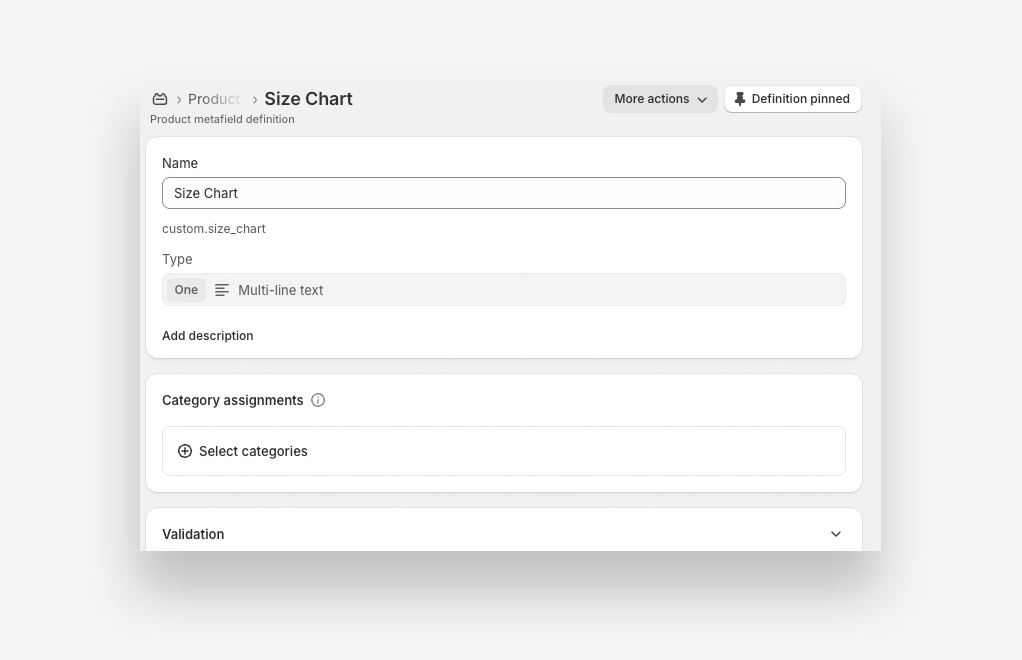
Step 2: Fill in the metafield per product
- Open a product in your Shopify admin.
- Scroll down to the Metafields section.
- Find the Size chart field and paste in your pipe-separated size table (see format above).
- Save the product.
- Repeat for each product that should have its own size chart.
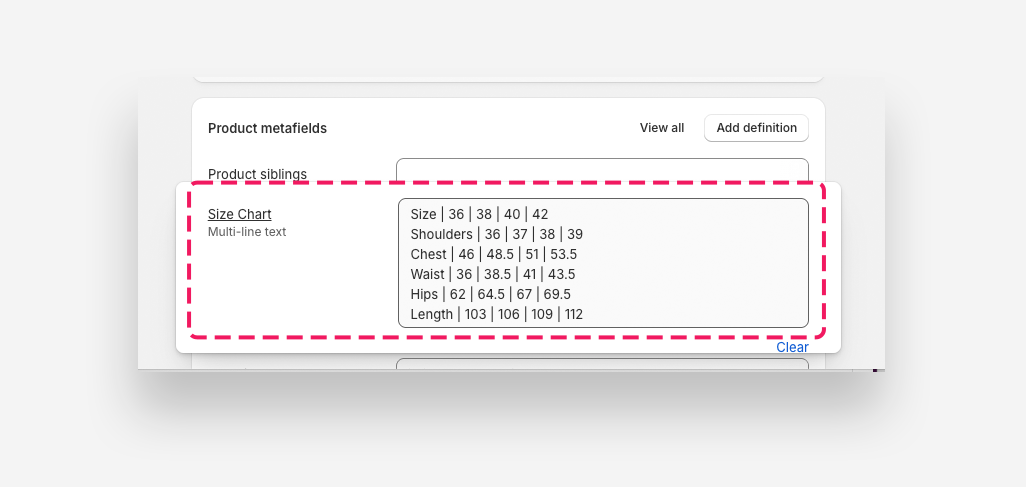
Step 3: Configure the block
Option A — next to the Size option (Variant Picker):
-
Open the Theme Editor and navigate to a product page.
-
Select the Variant Picker block.
-
Scroll to the Size guide popup header and configure:
- Link text:
Size guide - Variant name:
Size(must match your product option name exactly, apart from letter case) - Icon:
ruler(or any icon you prefer) - Metafield:
custom.size_chart - Enable striped rows table layout: enabled
- Link text:
-
Save the changes.
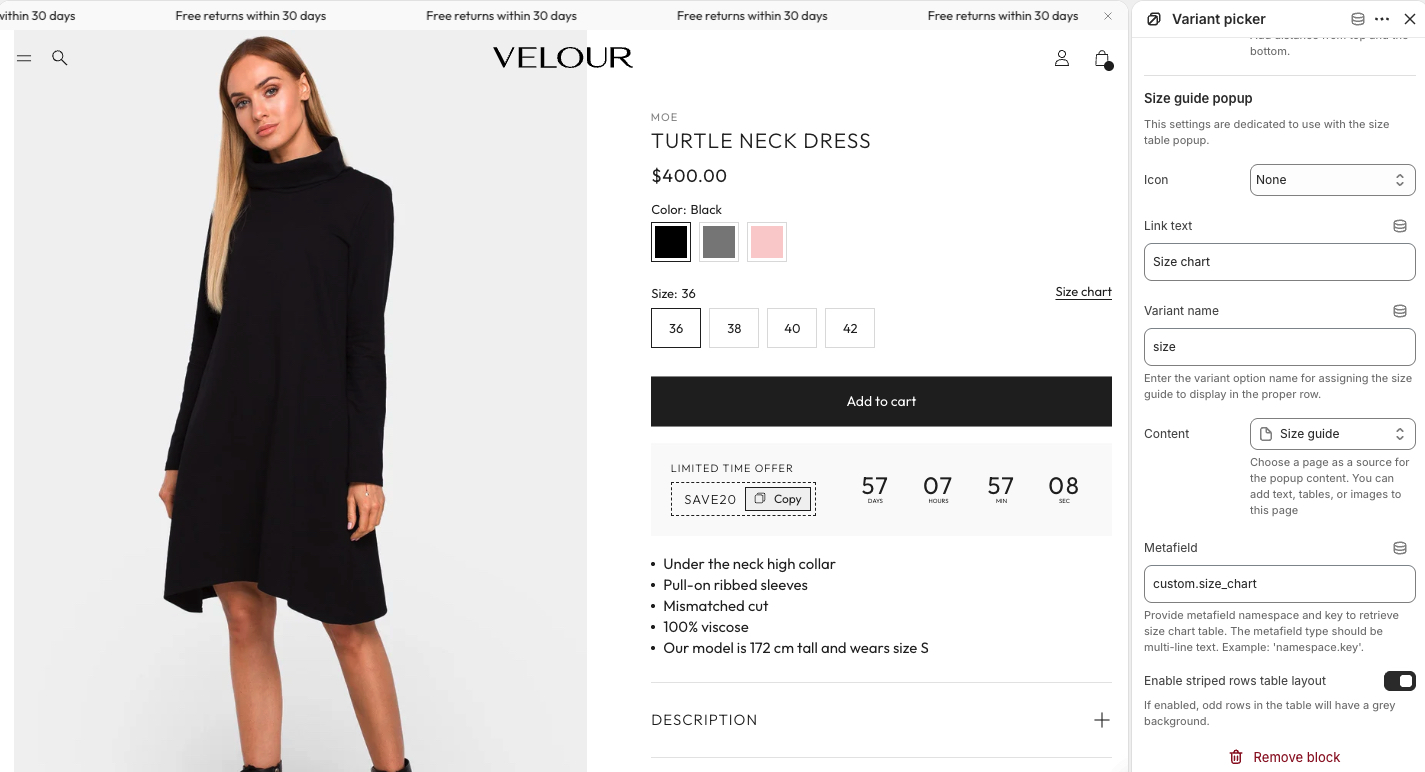 Option B — as a standalone block (Information popup):
 -
Open the Theme Editor and navigate to a product page.
-
In the Product information area, click Add block and choose Information popup.
-
Drag it to the position you want.
-
Fill in the same settings as above — there is no Variant name field, because the block is not attached to a variant row.
-
Save the changes.
Each product page now displays a "Size guide" link that opens a popup with that product's specific size chart.
Using a Shared Page Instead
If all your products use the same size guide, you can skip the metafield and use a single Shopify page:
- Create a new page in Online Store → Pages with your size guide content (text, tables, images).
- In the Content setting, select the page you created.
- Leave the Metafield field empty.
- Keep Link text filled in — it is still required for the link to appear.
The popup will display the page's title and content for all products.
Combining Both
You can fill in both Metafield and Content if you want a shared page with per-product tables. The popup will show:
- The page title as the heading
- The product-specific size table (from the metafield)
- The page body content (e.g. measurement instructions, care tips)
This is useful when you want consistent surrounding content (like "How to measure") but different size charts per product.