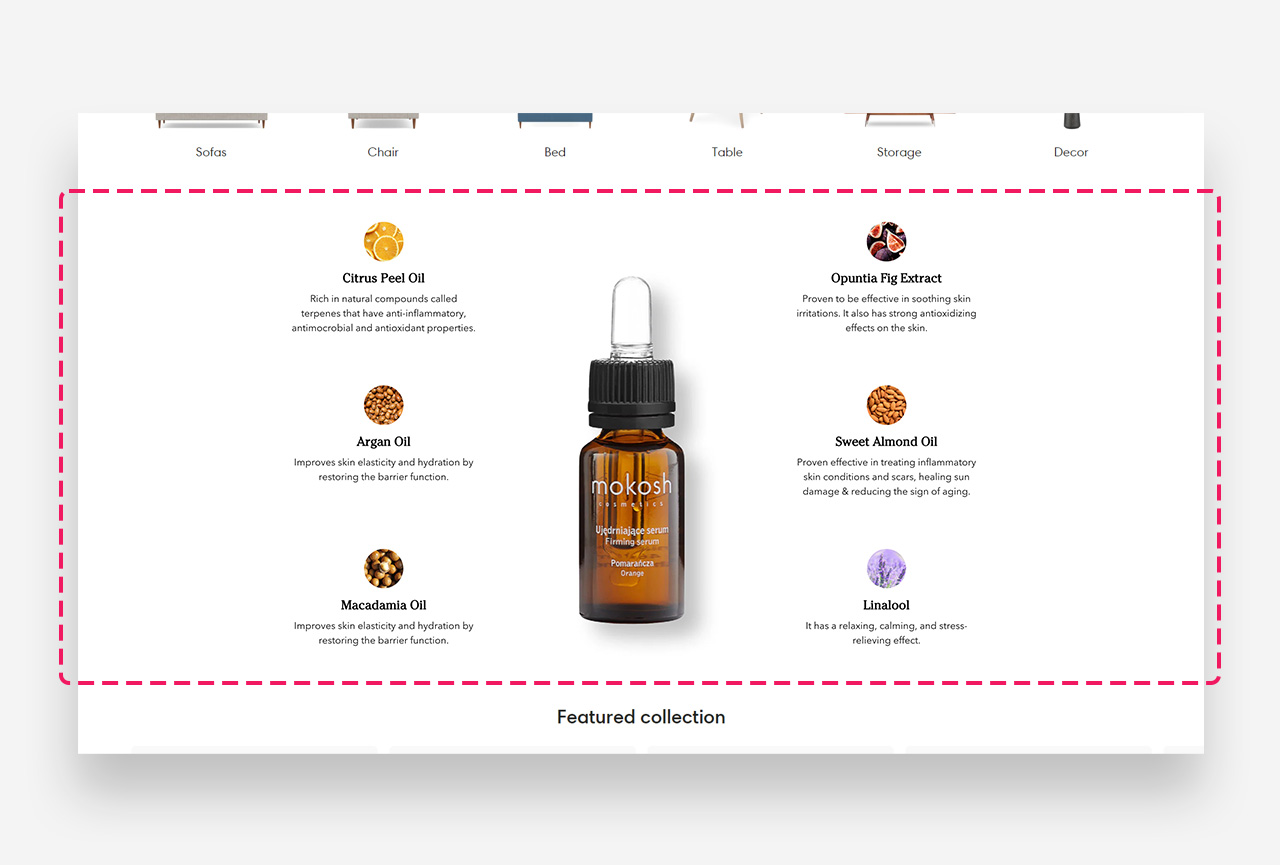
Product Benefits
What is the Product Benefits section?
Since v1.2.0
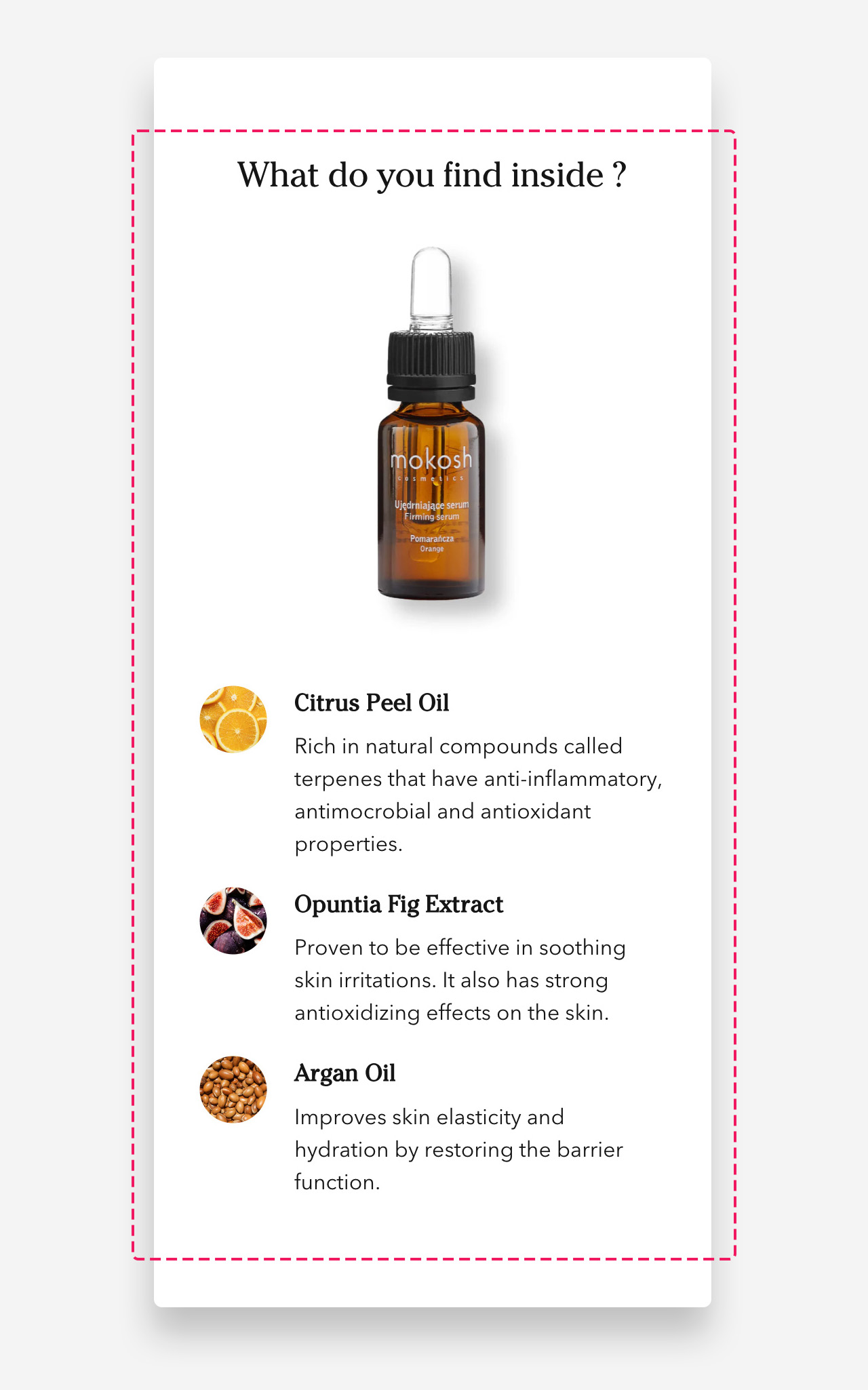
The Product Benefits section is crafted to showcase your products in a visually elegant and informative way. This feature allows you to add high-quality images optimized for both mobile and desktop views, ensuring your product presentation is clear and attractive across all devices. You can set up to 6 benefit blocks to highlight key product features, each accompanied by an icon or image of your choice. On mobile, these benefits are displayed in a streamlined column format, enhancing readability and user engagement.
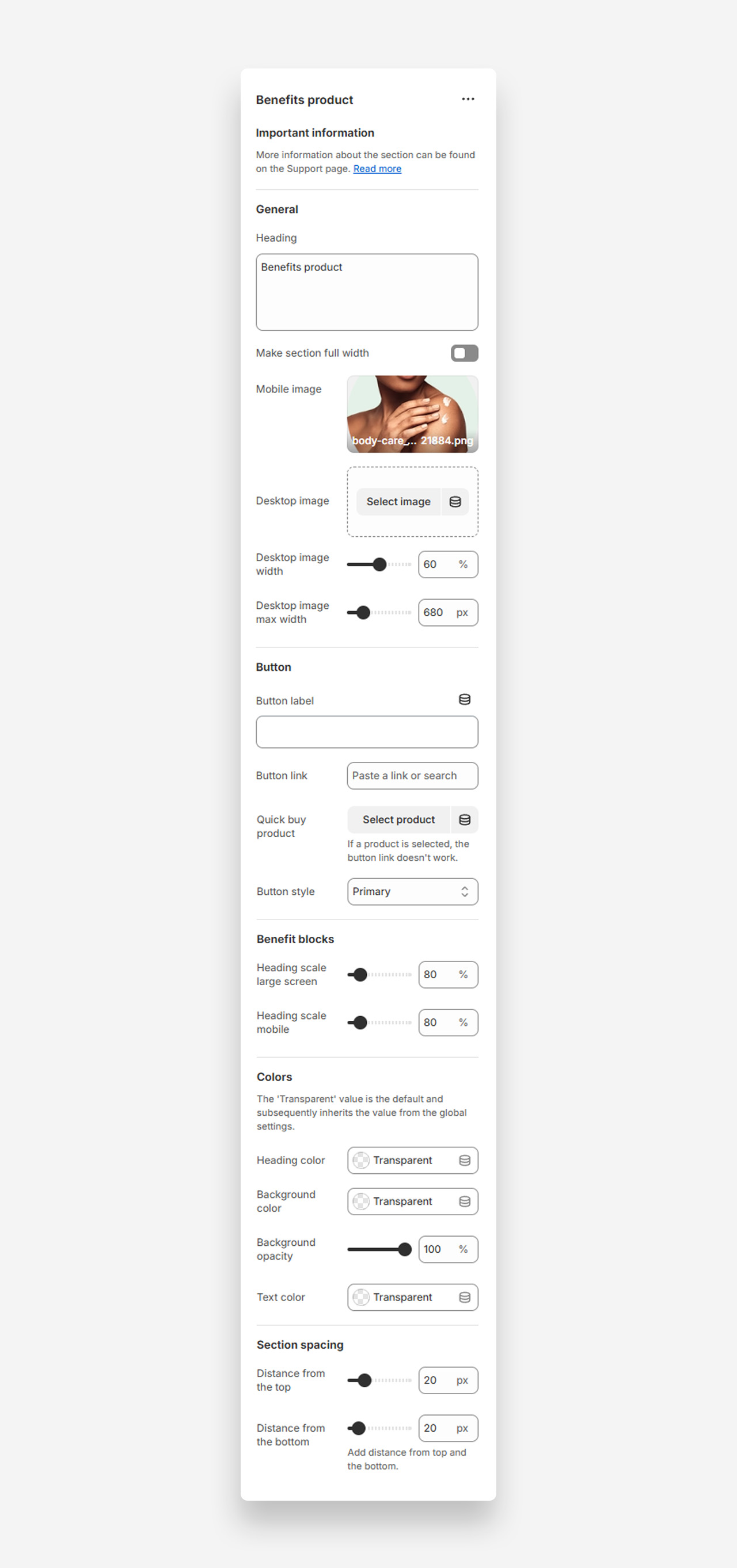
Main settings
General
- Heading : Enter the main title for the Product Benefits section.
- Make section full width : Enable this option to expand the section across the entire container width.
- Mobile image : Upload an image specifically for mobile view, optimizing the section for smaller screens.
- Desktop image : Upload an image optimized for desktop view to ensure clear and attractive display on larger screens.
- Desktop image width : Adjust the percentage width of the desktop image.
- Desktop image max width : Set a maximum width in pixels for the desktop image to control its display size.
Button
- Button label : Define the text that appears on the button.
- Button link : Enter a URL or select a link for the button to direct users to a specific page.
- Quick buy product : Select a product for a quick-buy option. Note: if a product is chosen, the button link is disabled.
- Button style : Choose the visual style of the button (e.g., primary, secondary).
Benefit Blocks
- Heading scale large screen : Adjust the heading size for larger screens as a percentage of the default.
- Heading scale mobile : Adjust the heading size for mobile screens as a percentage of the default.
Colors
- Heading color : Set the color of the section heading text.
- Background color : Choose a background color for the section.
- Background opacity : Control the opacity level of the background color.
- Text color : Define the color for the text in this section.
Section Spacing
- Distance from the top : Adjust the space between the section and the top of the page.
- Distance from the bottom : Adjust the space between the section and the bottom of the page.
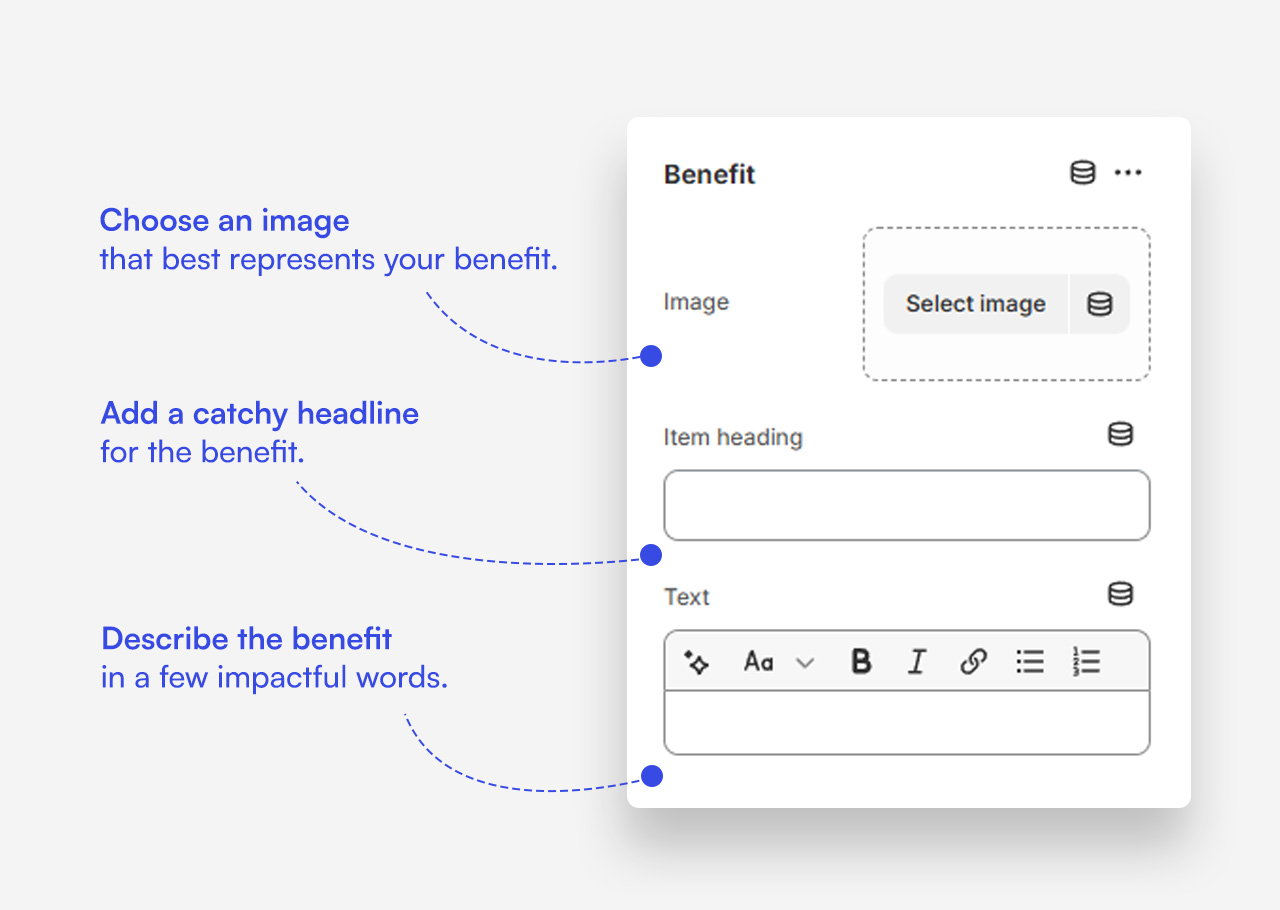
Customize Benefit block
Click one of the preloaded Benefit block to customize it.
Mobile view example