Recently Viewed Products
What is the Recently Viewed Products section?
Since v1.0.0
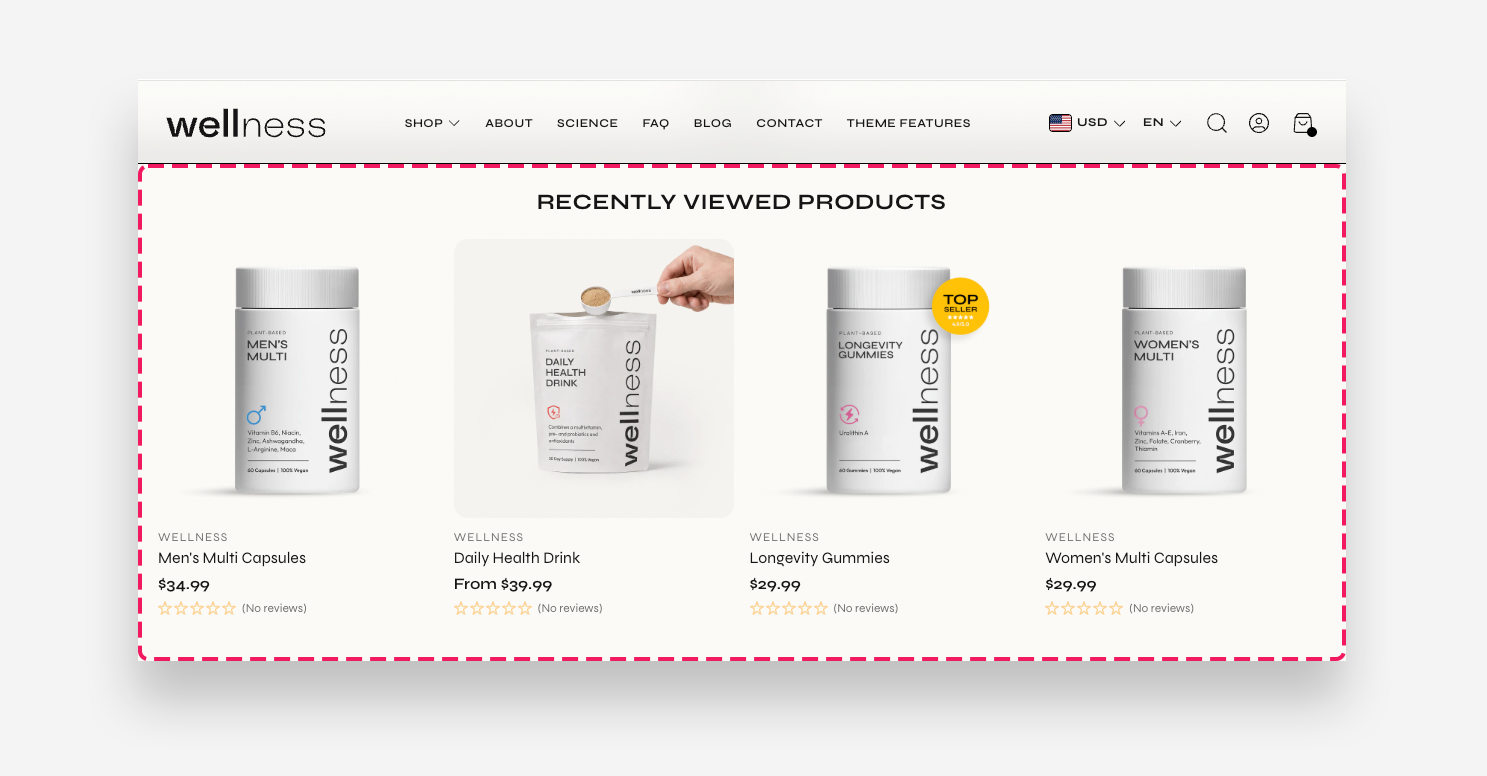
The Recently Viewed Products section displays a dynamic list of products that the visitor has previously viewed during their session. Product data is cached for 5 minutes — if you make changes in the admin, they will be visible after 5 minutes. The section supports configurable grid layouts for desktop and mobile, full-width product cards, and flexible spacing controls.
Main Settings
- Heading: Enter the heading displayed above the recently viewed products grid.
- Hide section when no products: Enable this toggle to automatically hide the section when no recently viewed products are available. Only visible on the live site when products are available.
- Maximum products to show: Use the slider to set the maximum number of recently viewed products displayed in the section.
- Enable stack products: Enable this toggle to stack products vertically instead of displaying them in a horizontal grid.
Large Screen Version
- Products per row on desktop: Use the slider to set how many products are displayed per row on desktop.
- Spacing between products on desktop: Choose the spacing between product cards on desktop — 8px, 16px, or 24px.
- Make products full width: Enable this toggle to stretch each product card to the full width of its column.
Mobile Version
- Products per row on mobile: Use the slider to set how many products are displayed per row on mobile devices. Decimal values allow for partial product visibility to indicate scrollability.
- Spacing between columns on mobile: Choose the spacing between product cards on mobile — 4px, 8px, 12px, or 16px.
Colors
- Text color: Define the global text color for the section.
- Background color: Set the background color of the section. Defaults to the value set in global settings.
Section Spacing
- Top distance: Set the top spacing above the section content in pixels.
- Bottom distance: Set the bottom spacing below the section content in pixels.
- Show custom mobile spacing: Enable this toggle to reveal separate top and bottom spacing controls for mobile devices.
- Distance from the top mobile: Set the top spacing above the section on mobile devices in pixels. Only applied when custom mobile spacing is enabled.
- Distance from the bottom mobile: Set the bottom spacing below the section on mobile devices in pixels. Only applied when custom mobile spacing is enabled.