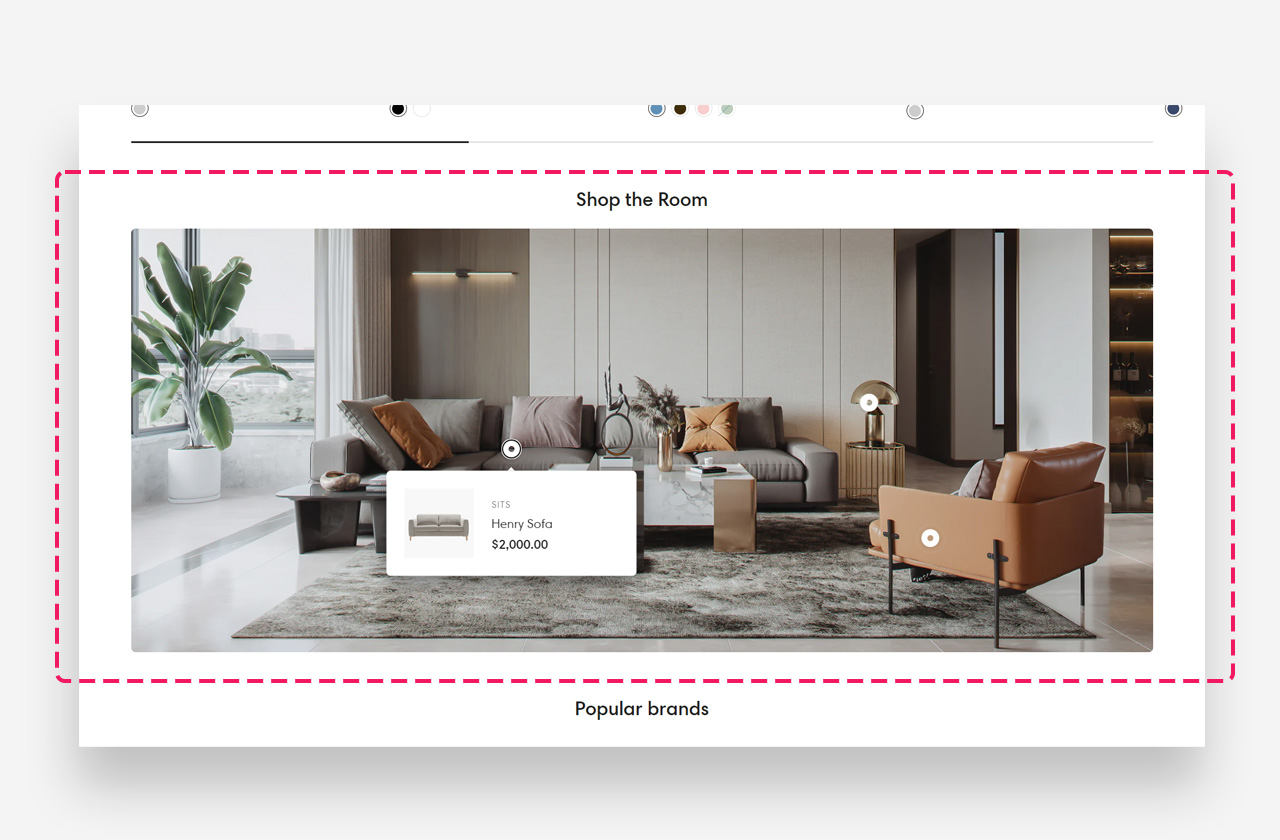
Shoppable image
What is the Shoppable image section?
The Shoppable Image section lets you place interactive hotspots directly on an image, linking to products or displaying custom benefit information. It can be used on any page and supports independent desktop and mobile images, full-width layout, vendor display, and flexible section spacing.
Main settings
General
- Use rich text field for heading: Enable this toggle to use the rich text editor for the heading, which supports bold, italic, links, heading levels (H1–H6 for SEO), and dynamic content.
- Heading: Enter the heading displayed above the shoppable image.
- Image: Upload or select the main image displayed on desktop. This is the image on which hotspots are placed. You can also explore free images directly from this field.
- Make section full width: Enable this toggle to stretch the section to the full width of the viewport.
- Show vendor: Enable this toggle to display the product vendor name inside product hotspot popups.
Mobile Version
- Image: Upload or select an alternative image to display on mobile devices. You can also explore free images directly from this field.
Colors
- Text color: Define the global text color for the section.
- Background color: Set the background color of the section. Defaults to the value set in global settings.
- Background opacity: Adjust the opacity of the section background color (0–100%).
Section Spacing
- Distance from the top: Set the top spacing above the section content in pixels.
- Distance from the bottom: Set the bottom spacing below the section content in pixels.
- Show custom mobile spacing: Enable this toggle to reveal separate top and bottom spacing controls for mobile devices.
- Distance from the top mobile: Set the top spacing above the section on mobile devices in pixels. Only applied when custom mobile spacing is enabled.
- Distance from the bottom mobile: Set the bottom spacing below the section on mobile devices in pixels. Only applied when custom mobile spacing is enabled.
Blocks
Benefit Hotspot
The Benefit Hotspot block places an informational callout on the image. When a visitor clicks or taps the hotspot marker, a popup appears displaying a heading, descriptive text, and an optional image. This block is ideal for highlighting product benefits, skincare tips, or other educational content tied to specific areas of the image.
- Image: Upload a custom image to display inside the benefit hotspot popup alongside the heading and text.
- Heading: Enter the title displayed at the top of the benefit hotspot popup. Supports rich text formatting (bold, italic, links, heading levels).
- Text: Enter the descriptive text displayed inside the benefit hotspot popup. Supports rich text formatting.
- Horizontal position: Use the slider to set the horizontal placement of the hotspot marker on the desktop image.
- Vertical position: Use the slider to set the vertical placement of the hotspot marker on the desktop image.
Mobile version
- Horizontal position: Use the slider to set the horizontal placement of the hotspot marker on the mobile image.
- Vertical position: Use the slider to set the vertical placement of the hotspot marker on the mobile image.
Hotspot (Product)
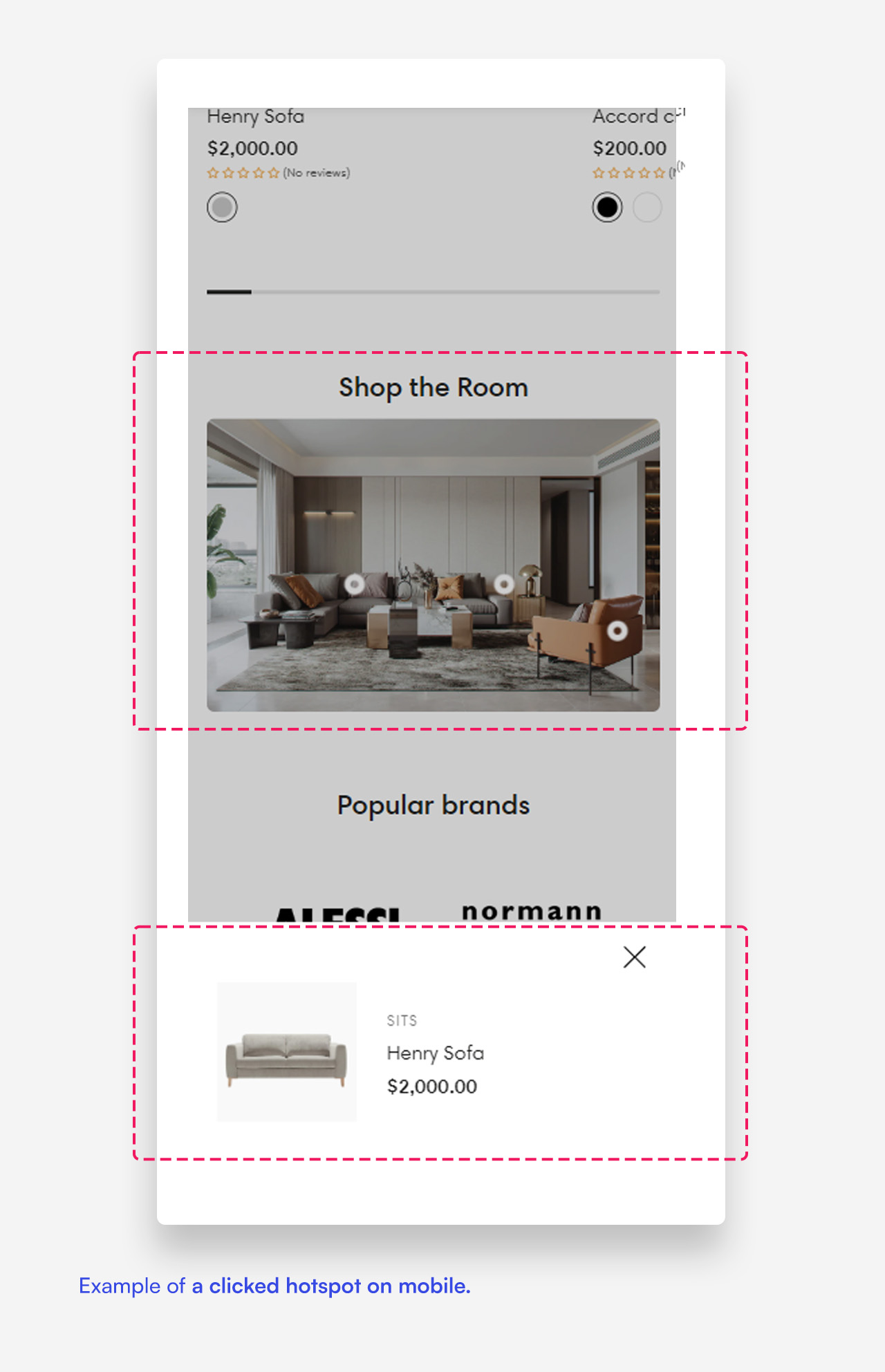
The Hotspot block links a specific point on the image to a product in your store. When a visitor clicks or taps the hotspot marker, a product card popup appears showing the product image, vendor (if enabled), title, and price. Visitors can click the card to go directly to the product page.
- Product: Select the product to link to this hotspot. The popup will display the product's image, title, and price.
- Horizontal position: Use the slider to set the horizontal placement of the hotspot marker on the desktop image.
- Vertical position: Use the slider to set the vertical placement of the hotspot marker on the desktop image.
Mobile version
- Horizontal position: Use the slider to set the horizontal placement of the hotspot marker on the mobile image.
- Vertical position: Use the slider to set the vertical placement of the hotspot marker on the mobile image .
Mobile view example