Image with Scrolling Text
What is Image with Scrolling Text section?
The Image with Scrolling Text section is designed to present content in an elegant, dynamic way. It features a sticky image that can change with each content block, while the accompanying text scrolls smoothly up or down.
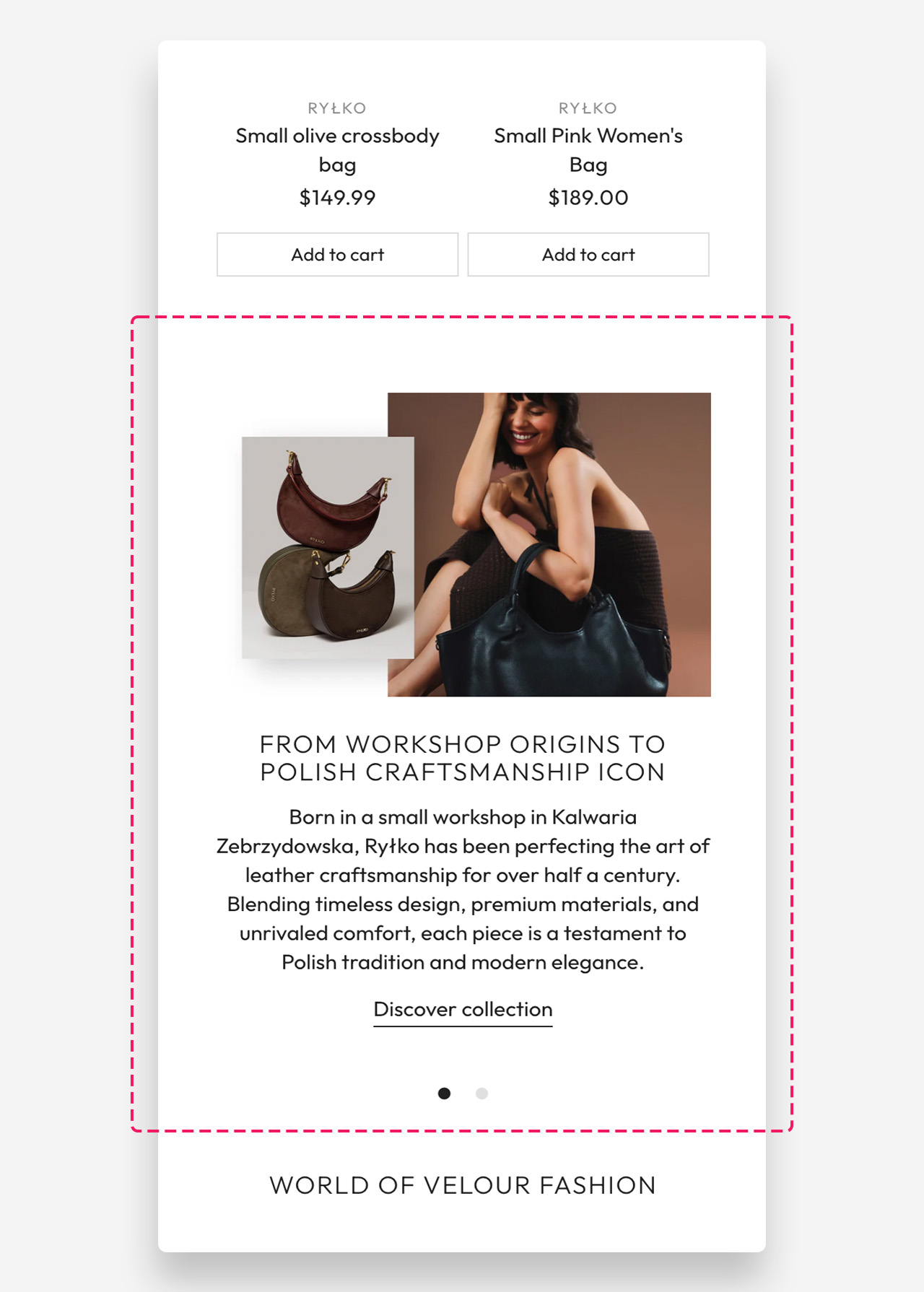
For the best user experience, the section automatically stretches to the full height of the screen, ensuring the scrolling animation looks smooth and immersive. On mobile devices, the section transforms into a slider for an optimal and intuitive browsing experience.
Subtle animations and flexible layout options make this section perfect for storytelling, product showcases, or brand presentations — adding a modern and professional feel to your store.
Mobile view
Main settings
General
- Desktop layout: Decide whether the text or image comes first.
- Make section full width: Choose whether the section spans the entire width of the screen.
- Image ratio: Pick the best shape for your images — square, portrait, or adapt to image.
Text alignment
- Text alignment: Set the alignment of text within the section on desktop (left, center, or right).
- Mobile screen text alignment: Set the alignment of text within the section on mobile (left, center, or right).
Colors
- Text color: Set the text color for the section. Defaults to the value set in global settings.
- Background color: Set the background color for the section. Defaults to the value set in global settings.
Section spacing
- Distance from the top – Add spacing (in pixels) above the section to create breathing room.
- Distance from the bottom – Add spacing (in pixels) below the section for better layout balance.
- Show custom mobile spacing: Enable this toggle to reveal separate top and bottom spacing controls for mobile devices.
- Distance from the top mobile: Set the top spacing above the section on mobile devices in pixels. Only applied when custom mobile spacing is enabled.
- Distance from the bottom mobile: Set the bottom spacing below the section on mobile devices in pixels. Only applied when custom mobile spacing is enabled.
Blocks
Image Block
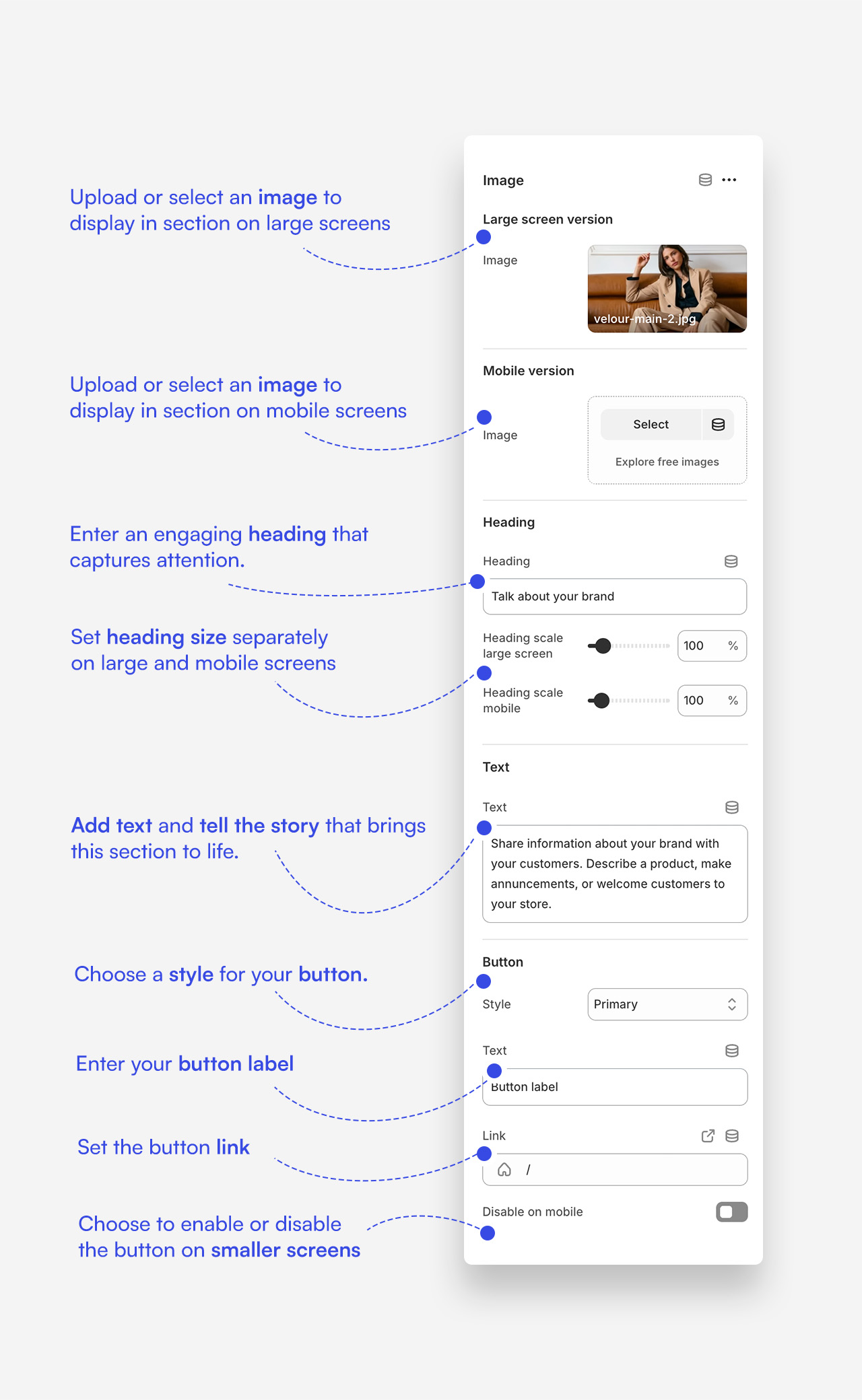
The Image block adds an individual image within the Image with scrolling text section, along with an optional heading, text, and button. It supports separate image uploads for desktop and mobile, allowing you to display different visuals depending on the screen size.
How to set up Image with scrolling text section?
- Add the Image with Scrolling Text section to your page.
- Configure each block by adding an image, text, or button.
- Adjust the section settings: choose the image/text order, enable or disable full width, set the image size, and select the text alignment.