Image with text with countdown
What is the Image with text with countdown section?
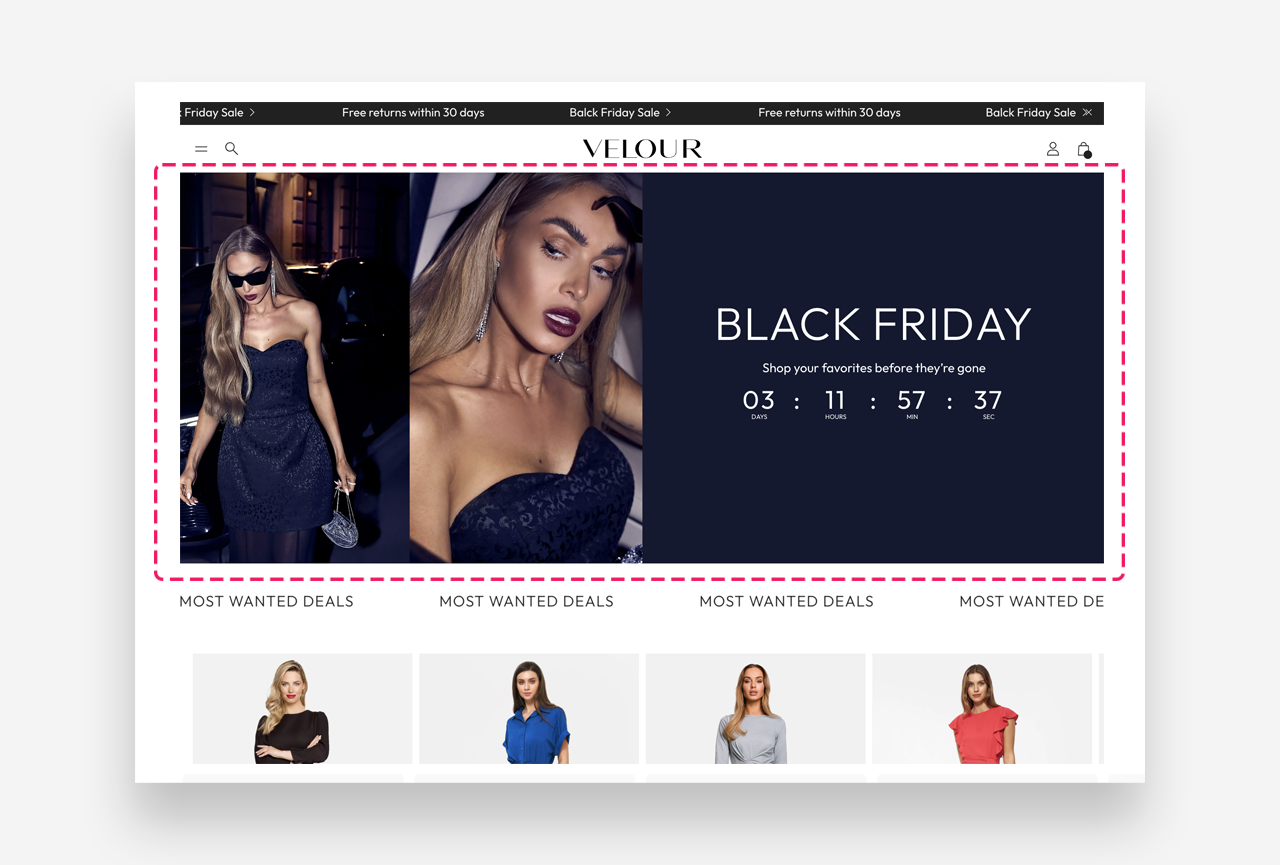
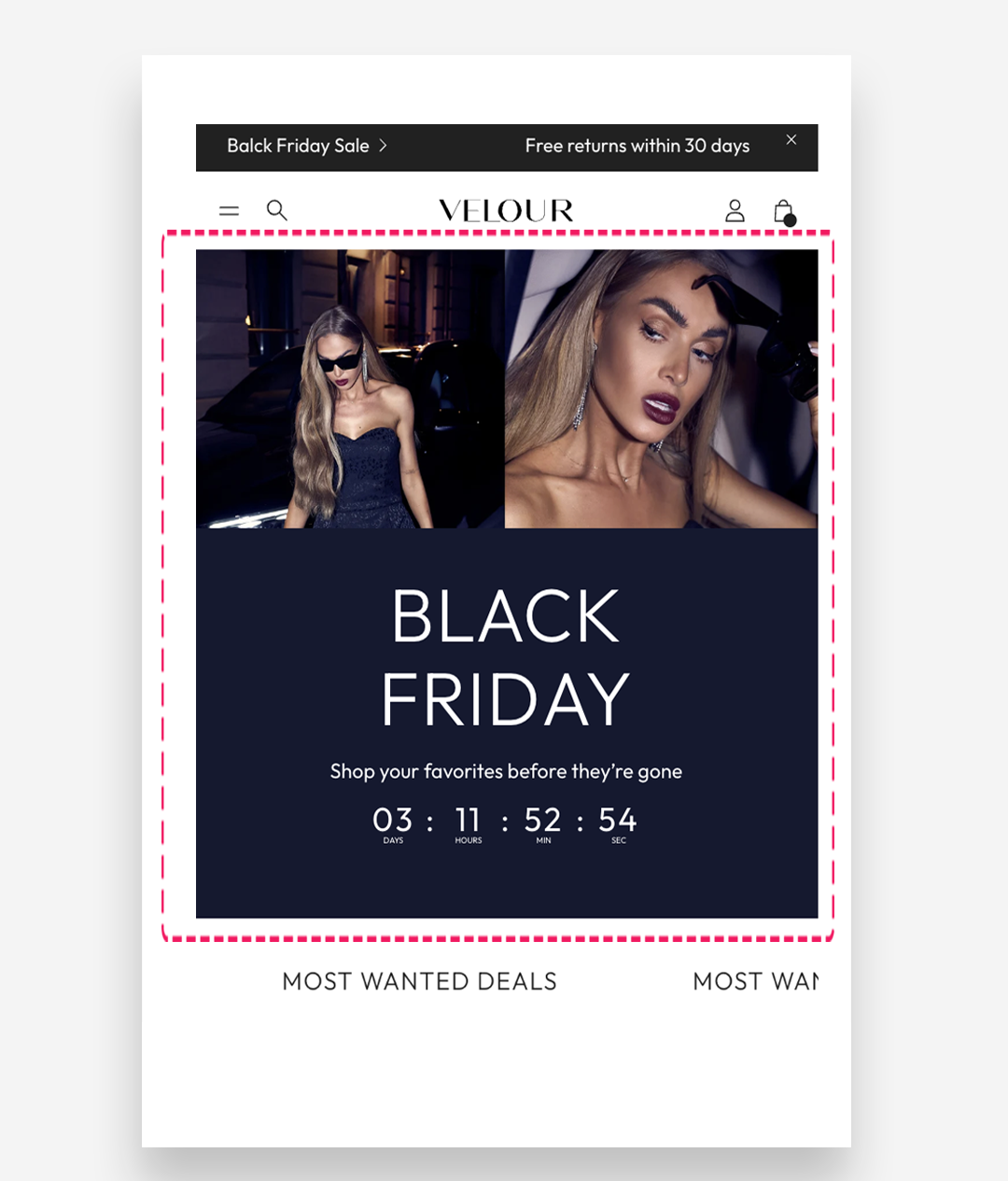
The Image with Text with Countdown section displays an image alongside text and includes a countdown timer, ideal for highlighting product launches, promotions, or limited-time events.
Mobile view example
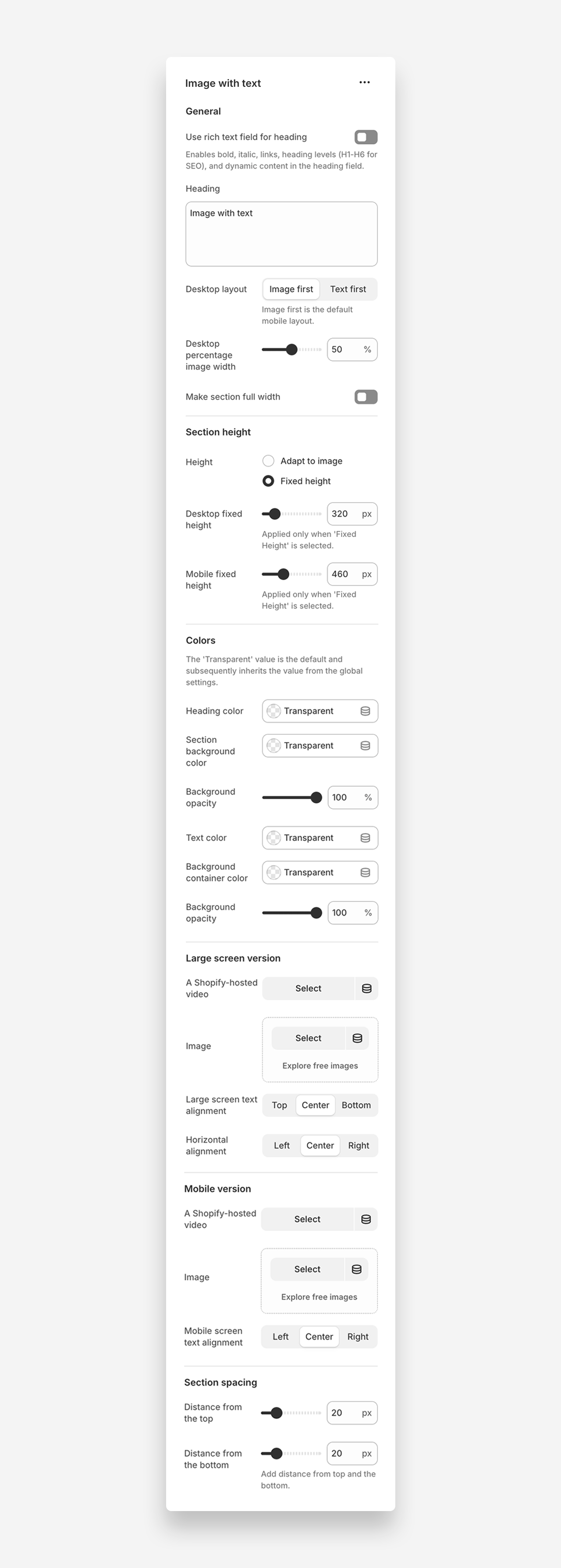
Main settings
Heading
- Heading: Set the title for the image with text section to introduce the content.
- Use rich text field for heading: Enable a rich text heading to choose the heading level (H1–H6) for SEO purposes and connect dynamic sources if needed.
Desktop Layout
- Desktop layout: Choose the layout for desktop devices (options: Image first, Text first).
- Desktop percentage image width: Adjust the percentage width of the image on desktop devices.
- Make section full width: Enable this setting to make the section span the entire width of the container.
Section Height
Height
- Height: Choose between adapting the height to the image or setting a fixed height.
- Desktop fixed height: Adjust the fixed height for desktop view.
- Mobile fixed height: Adjust the fixed height for mobile view.
Colors
- Heading color: Set the color of the section heading. Defaults to the value set in global settings.
- Section background color: Set the background color of the section. Defaults to the value set in global settings.
- Background opacity: Adjust the opacity of the background color.
- Text color: Set the text color for the section. Defaults to the value set in global settings.
- Text container color: Set the background color of the text container. Defaults to the value set in global settings.
- Background opacity: Adjust the opacity of the text container background color.
Large Screen Version
Image
- Image: Select an image for the large screen version of the section.
Large Screen Text Alignment
- Large screen text alignment: Choose the alignment of the text on the section for large screens (options: Top, Center, Bottom, Left, Center, Right).
Mobile Version
Image
- Image: Select an image for the mobile version of the section.
Mobile Screen Text Alignment
- Mobile screen text alignment: Choose the alignment of the text on the section for mobile screens (options: Left, Center, Right).
Section Spacing
- Distance from the top: Adjust the spacing from the top of the section.
- Distance from the bottom: Adjust the spacing from the bottom of the section.
Blocks
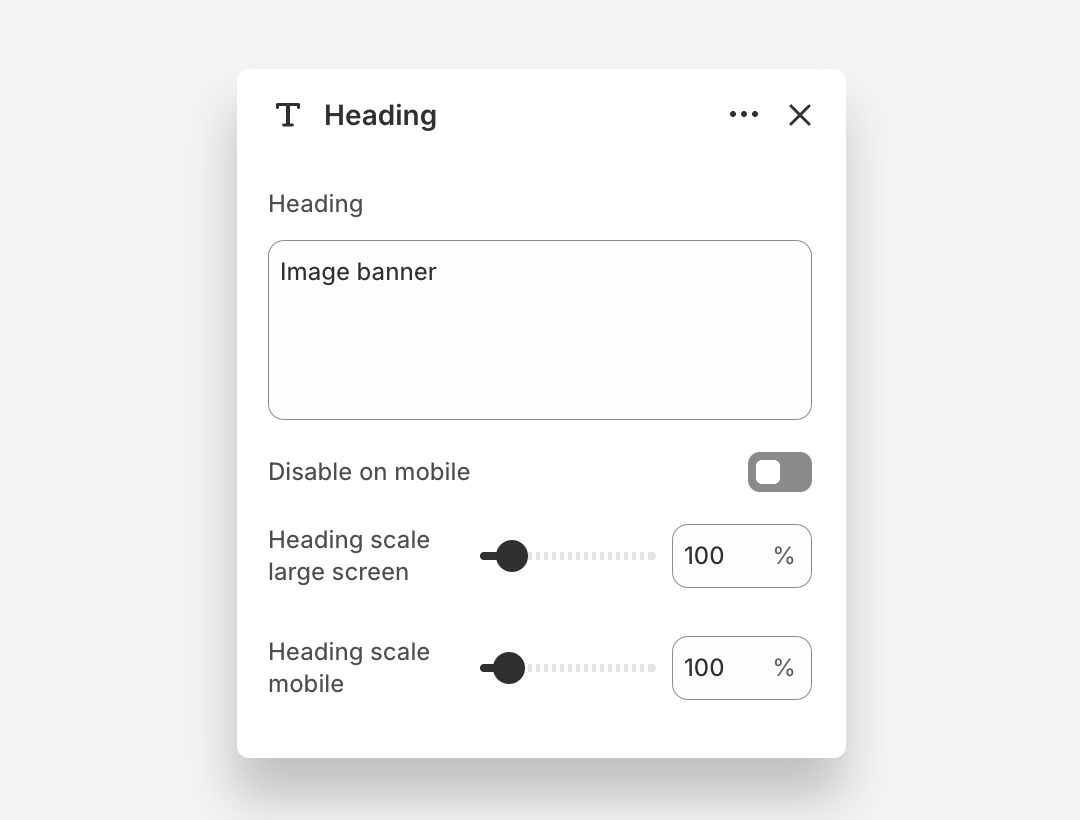
Heading Block
- Heading: Enter the heading text displayed on the banner.
- Disable on mobile: Hide this heading block on mobile devices.
- Heading scale large screen: Adjust the font size of the heading on large screens.
- Heading scale mobile: Adjust the font size of the heading on mobile devices.
Text Block
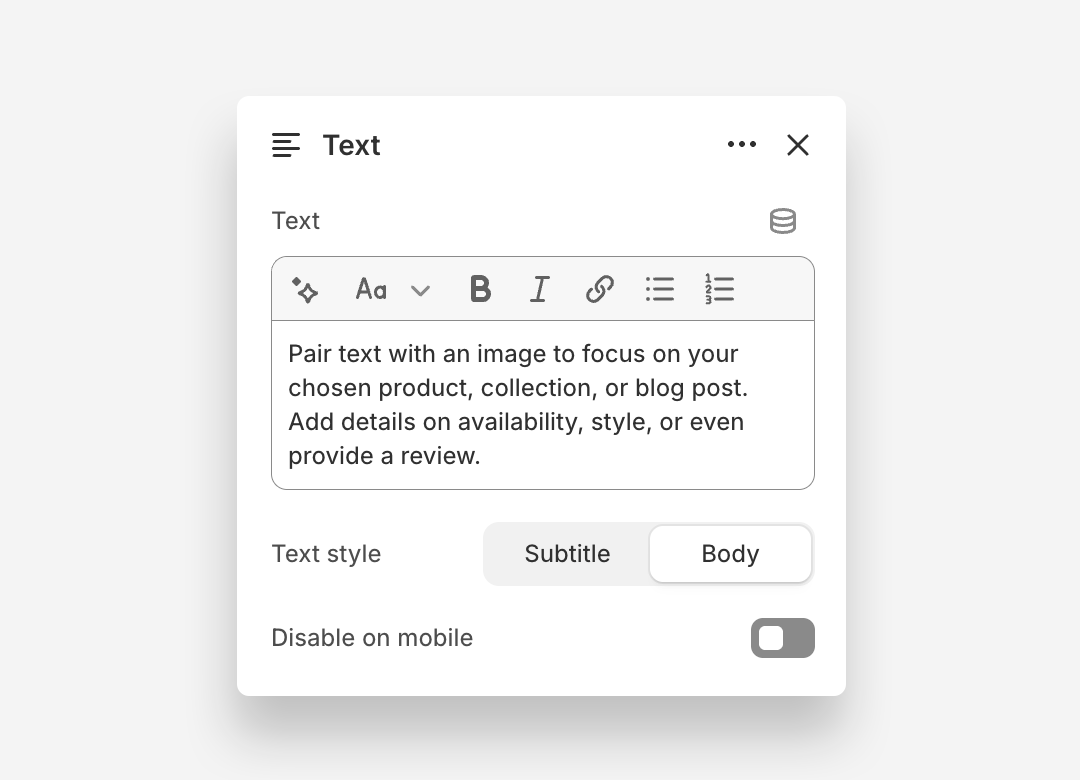
The Text block displays supporting body copy overlaid on the banner image.
- Text: Enter the body text displayed on the banner. Rich text formatting options are available.
- Disable on mobile: Hide this text block on mobile devices.
- Text style – Choose "Subtitle" or "Body" style
Button Block
The Button block adds one or two call-to-action buttons overlaid on the banner image.
Button 1
- Style: Choose the visual style of the button.
- Text: Set the button label.
- Disable on mobile: Hide Button 1 on mobile devices.
- Link: Assign a URL or page link to the button.
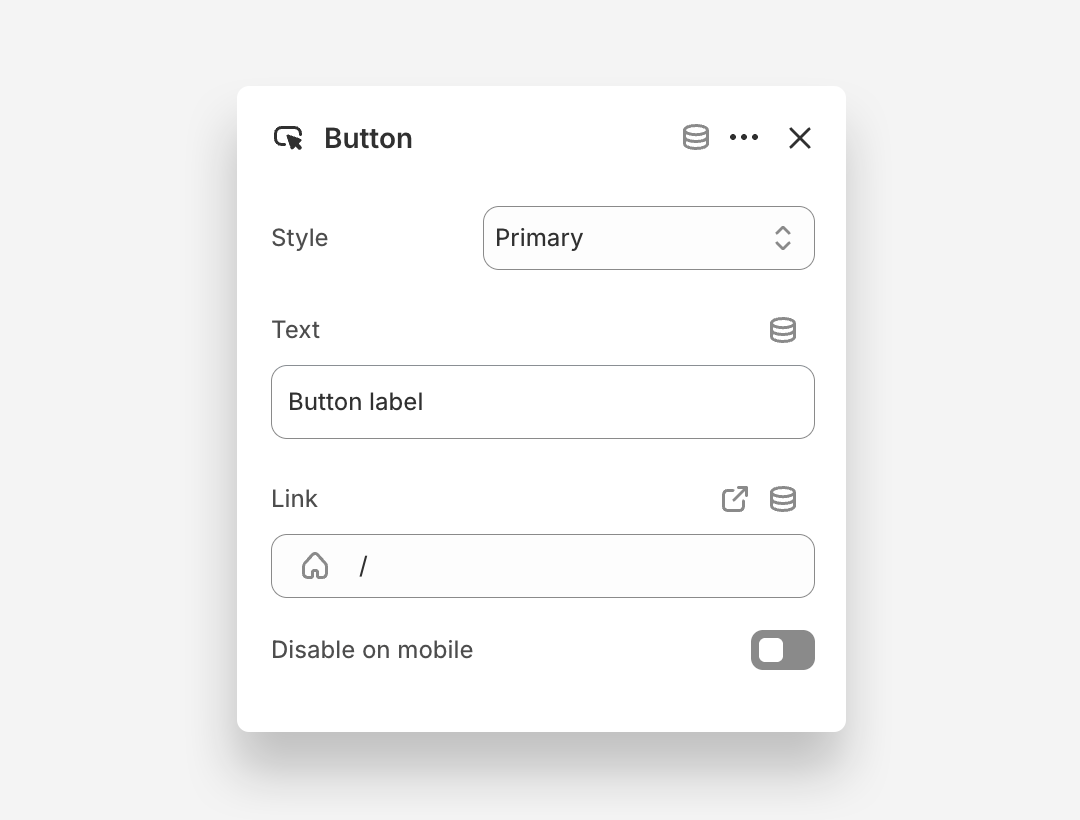
Table Block
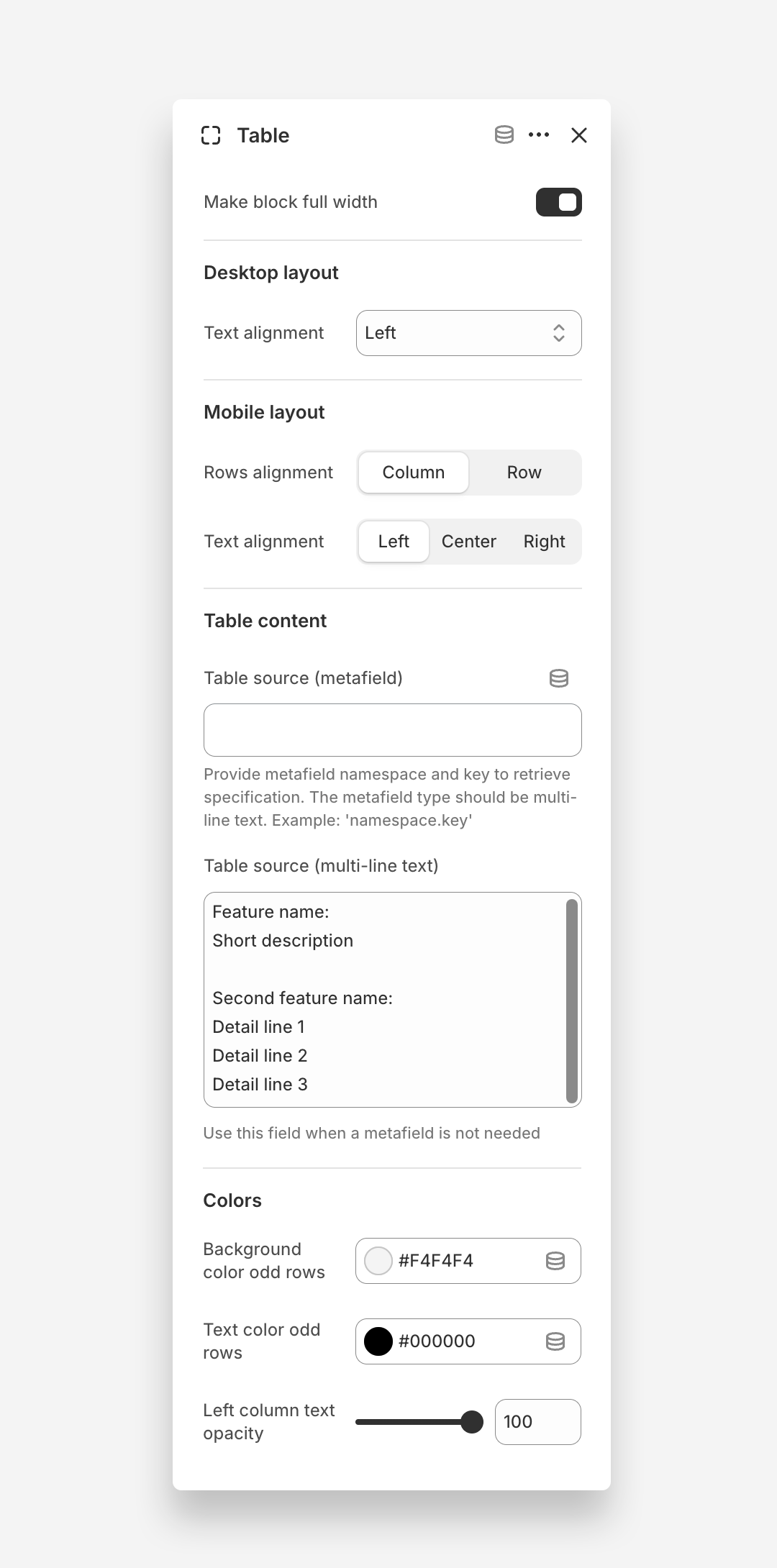
The Table block displays structured product information or specifications in a clean, organized table format. It is ideal for presenting feature comparisons, technical details, or any multi-row data directly on the product page.
- Make block full width: Enable this toggle to stretch the table to the full width of its container.
Desktop Layout
- Text alignment: Set the alignment of the text within the table on desktop.
Mobile Layout
- Rows alignment: Choose how the table rows are arranged on mobile devices — Column or Row.
- Text alignment: Set the alignment of the text within the table on mobile — Left, Center, or Right.
Table Content
- Table source (metafield): Enter the metafield namespace and key to retrieve the table data dynamically. The metafield type should be multi-line text. Enter the value in the format
namespace.key. - Table source (multi-line text): Manually enter the table content directly in this field. Use this field when a metafield is not needed. Format each row with a feature name followed by its details on separate lines.
Colors
- Background color odd rows: Set the background color of the odd-numbered rows in the table.
- Text color odd rows: Define the text color of the odd-numbered rows in the table.
- Left column text opacity: Adjust the opacity of the text in the left column of the table.
Icon with Text Block
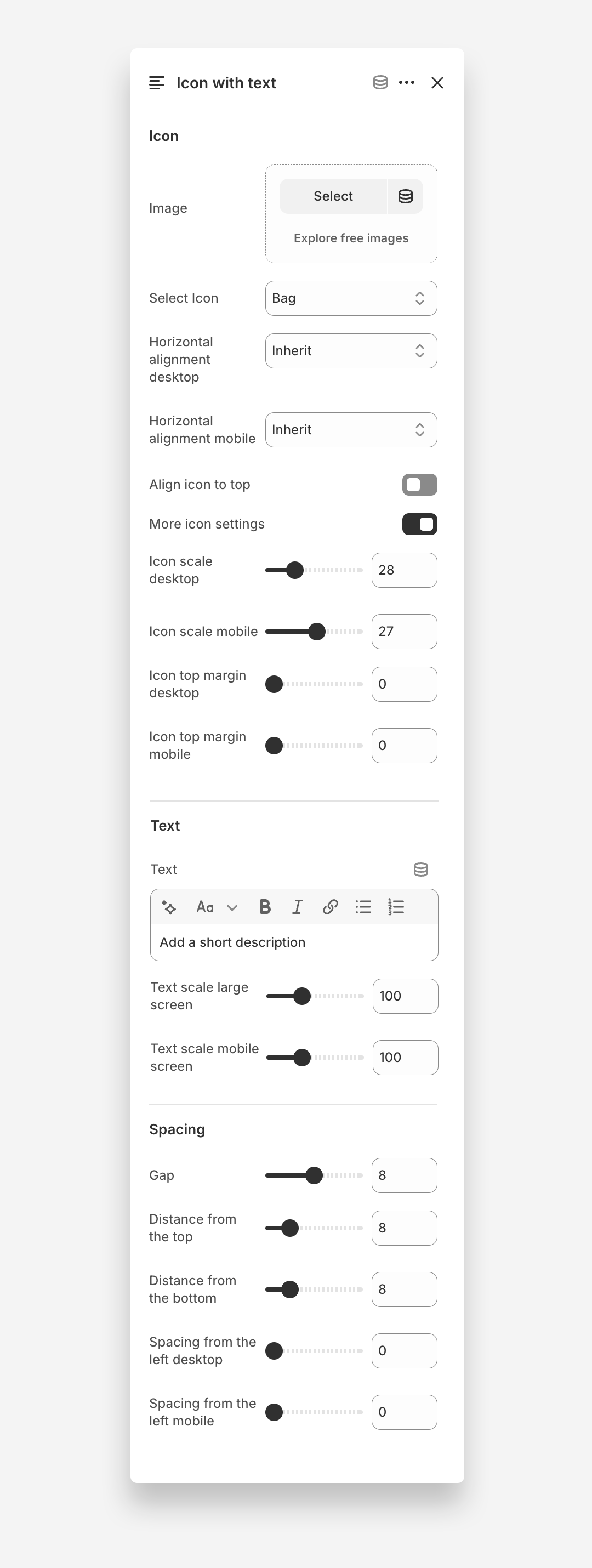
The Icon with Text block displays an icon paired with a short description overlaid on the banner image. It is ideal for highlighting key features or selling points directly within the banner.
Icon
- Image: Upload a custom image to use as the icon.
- Select Icon: Choose an icon from the built-in icon library.
- Horizontal alignment desktop: Set the horizontal alignment of the icon on desktop.
- Horizontal alignment mobile: Set the horizontal alignment of the icon on mobile devices.
- Align icon to top: Enable this toggle to align the icon to the top of the block.
- More icon settings: Enable this toggle to access additional icon configuration options.
- Icon scale desktop: Define the size of the icon on desktop.
- Icon scale mobile: Define the size of the icon on mobile devices.
- Icon top margin desktop: Adjust the spacing above the icon on desktop.
- Icon top margin mobile: Adjust the spacing above the icon on mobile devices.
Text
- Text: Enter the label displayed next to the icon. Rich text formatting options are available.
- Text scale large screen: Adjust the font size of the text on large screens.
- Text scale mobile screen: Adjust the font size of the text on mobile devices.
Spacing
- Gap: Set the spacing between the icon and the text label.
- Distance from the top: Adjust the spacing above the block.
- Distance from the bottom: Adjust the spacing below the block.
- Spacing from the left desktop: Adjust the left offset of the block on desktop.
- Spacing from the left mobile: Adjust the left offset of the block on mobile devices.
Spacer Block
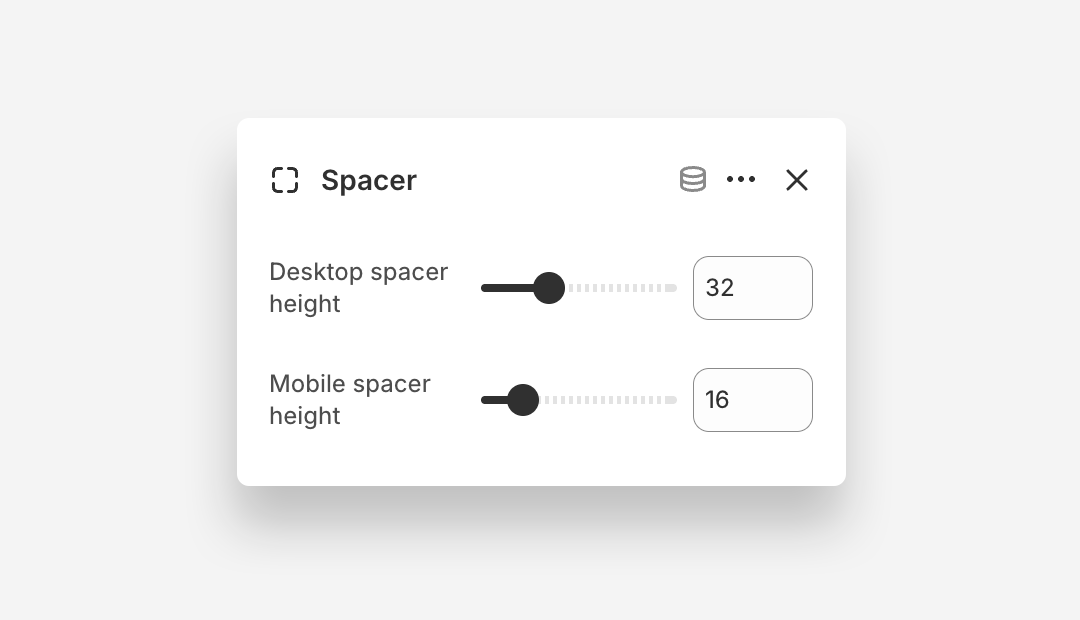
The Spacer block adds a blank vertical space between content elements within the banner, allowing you to control the layout.
- Desktop spacer height: Define the height of the spacer on desktop.
- Mobile spacer height: Define the height of the spacer on mobile devices.
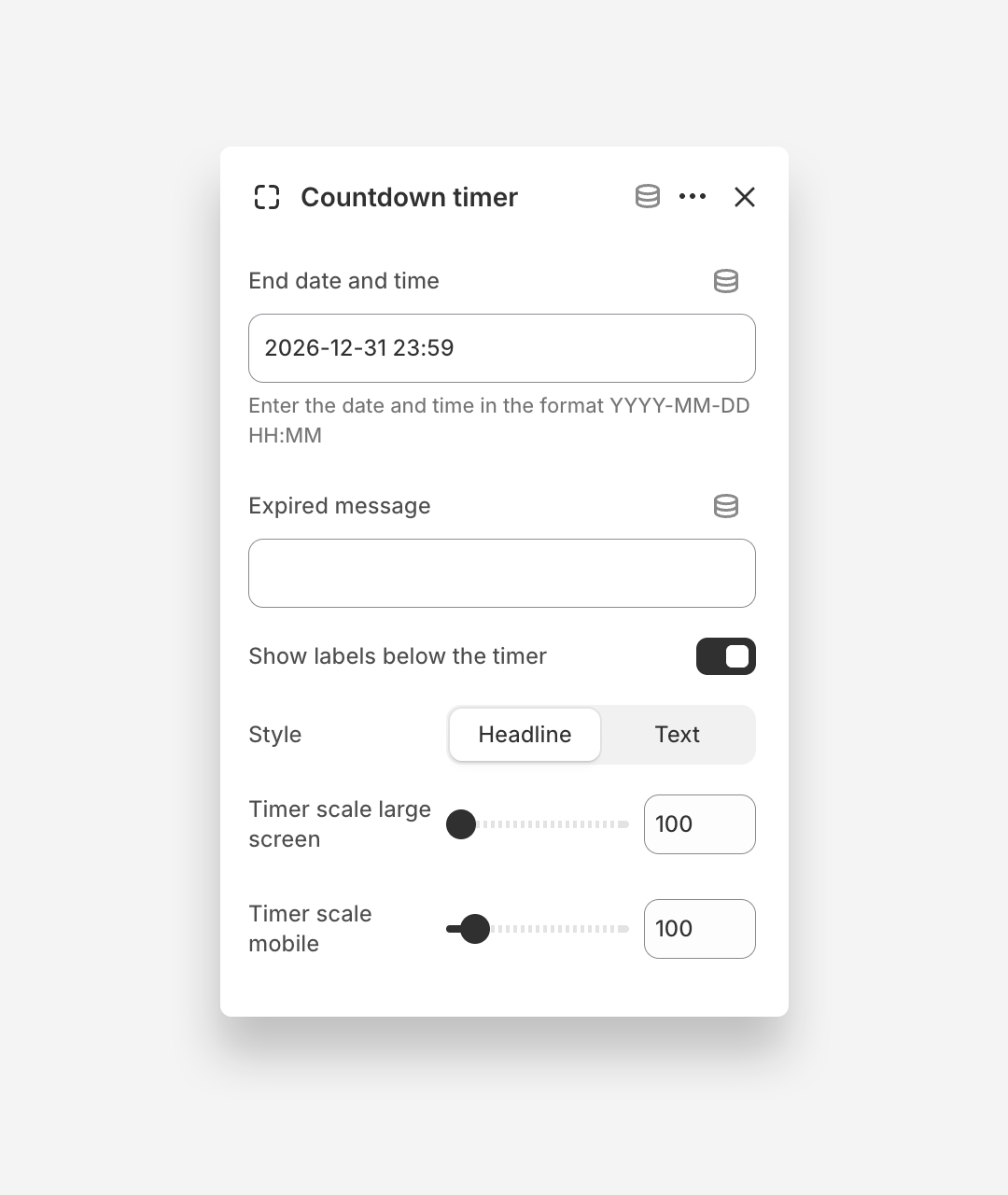
Countdown Timer Block
The Countdown Timer block displays a live countdown clock overlaid on the banner image, creating urgency for time-sensitive promotions or product launches.
- End date and time: Set the date and time at which the countdown ends. Enter the value in the format YYYY-MM-DD HH:MM.
- Expired message: Enter the message displayed once the countdown has reached zero.
- Show labels below the timer: Enable this toggle to display labels such as Days, Hours, Min, and Sec beneath the timer digits.
- Style: Set the text style of the timer — Headline or Text.
- Timer scale large screen: Adjust the font size of the countdown timer on large screens.
- Timer scale mobile: Adjust the font size of the countdown timer on mobile devices.