Inventory status block
Inventory status block
Since v1.0.0Product page
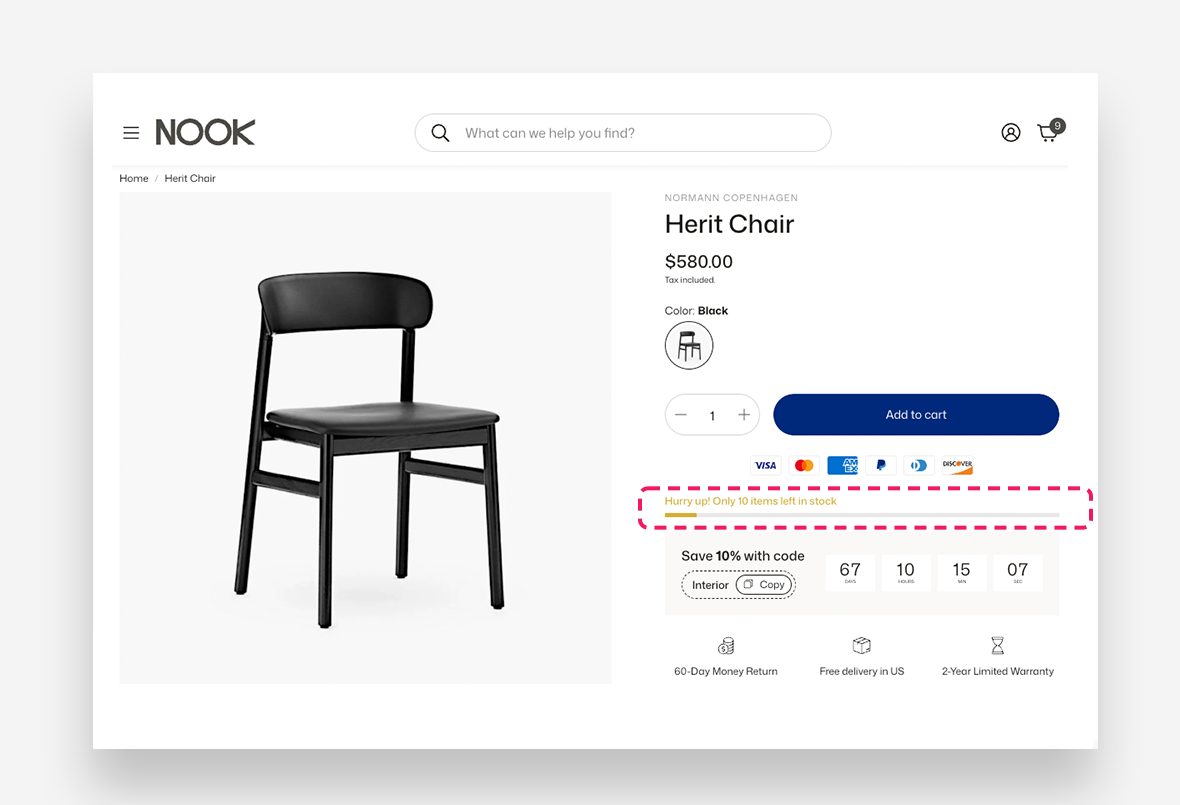
The Inventory Status block displays real-time stock information on the product page, helping to create urgency and inform customers about product availability. It supports three inventory levels — High, Medium, and Low — each with a customizable message, color, and threshold.
Settings
General Settings
- Low inventory threshold — Set the stock quantity at which the product is considered low in inventory. Choose
0to always show in stock if available. - Show inventory count — Enable this toggle to display the exact number of items remaining in stock.
- Inventory count threshold — Define the stock level at or below which the exact inventory count is shown. Set to
0to always show the count.
Progress Bar
- Show progress bar — Enable this toggle to display a visual progress bar representing the current stock level.
- Progress bar max value — Set the number that represents 100% stock on the progress bar. Must be a number.
- Number of stock levels — Define how many stock level indicators are displayed on the progress bar.
High Inventory
- High inventory threshold — Set the stock quantity at or below which the high inventory message is displayed. Set to
0to disable. - High inventory message — Enter the message displayed when stock is at the high inventory level. Use
[quantity]as a placeholder for the current inventory count (e.g.[quantity] items left in stock). - High inventory color — Set the color used for the high inventory message and progress bar indicator.
Medium Inventory
- Medium inventory threshold — Set the stock quantity at or below which the medium inventory message is displayed. Set to
0to disable. - Medium inventory message — Enter the message displayed when stock is at the medium inventory level. Use
[quantity]as a placeholder for the current inventory count. - Medium inventory color — Set the color used for the medium inventory message and progress bar indicator.
Low Inventory
- Low inventory threshold — Set the stock quantity at or below which the low inventory message is displayed. Set to
0to disable. - Low inventory message — Enter the message displayed when stock is at the low inventory level. Use
[quantity]as a placeholder for the current inventory count. - Low inventory color — Set the color used for the low inventory message and progress bar indicator.