Subscription Widget block
Subscription Widget Block
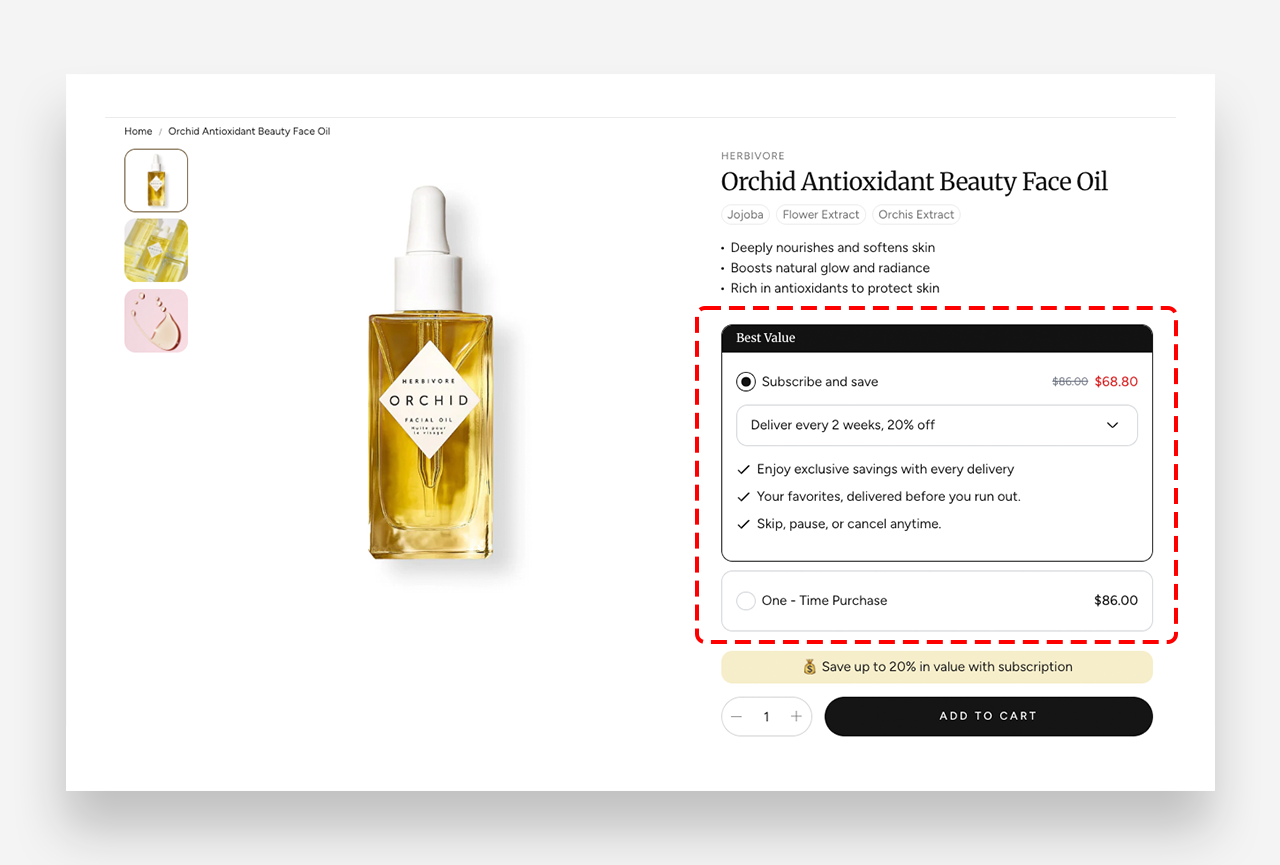
The Subscription Widget block integrates your product page with the Shopify Subscriptions app, allowing customers to choose between a subscription plan with recurring savings or a one-time purchase. It is ideal for products that customers buy regularly, helping to increase customer retention and lifetime value.
Before You Begin
Step 1 — Install the Shopify Subscriptions App
This widget only works when the Shopify Subscriptions app is installed on your store. To get started, install the app directly from the Shopify App Store before configuring this block.
Step 2 — Set Up Your Subscription Plan
Once the app is installed, you will need to create and configure your subscription plans — including delivery frequency, discount percentage, and billing options. You can see exactly how to do this in the video below.
Once your subscription plans are set up, you can proceed to configure the Subscription Widget block in the Theme Customizer as described below.
Main Settings
- Subscription title: Enter the text displayed as a banner above the subscription option (e.g. Best Value).
- Show prices in the widget: Enable this toggle to display the regular and discounted prices directly within the widget.
- Display order: Choose the order in which purchase options are displayed — Selling plan first or One-time purchase first.
- Headings text style: Set the text style for headings within the widget — Heading or Body.
Subscription Purchase
- Description: Add a list of benefits displayed below the subscription select box for each plan.
- Show tick icon: Enable this toggle to replace default list bullets in the rich text with tick icons.
One-Time Purchase
- Label: Set the label displayed for the one-time purchase option.
- Description: Add a description displayed below the one-time purchase option. Rich text formatting options are available.
- Show tick icon: Enable this toggle to show tick icons.
Colors
The following color settings allow you to fully customize the appearance of the Subscription Widget to match your store's branding.
- Accent color: Set the accent color used for highlights and active elements within the widget.
- Background color: Customize the background color of the widget.
- Active background color: Set the background color of the currently selected purchase option.
- Heading color: Define the color of the heading text within the widget.
- Subscription title color: Set the color of the subscription title banner text.
- Content text color: Define the color of the body text within the widget.
- Border color: Set the color of the borders around the purchase option cards.
- Active border color: Set the border color of the currently selected purchase option.
- Regular price color: Define the color of the regular price displayed in the widget.
- Sale price color: Set the color of the discounted subscription price.
- Crossed out price color: Define the color of the original price displayed with a strikethrough when a discount is applied.